
The deployment of iOS 18 has introduced a refined architecture for system-level applications, particularly the native Notes app. However, several users have reported a critical UI discrepancy: the Camera icon has vanished from the primary toolbar. This is not a hardware failure but rather a result of Apple’s shift toward a consolidated "Plus" (+) interface designed to streamline AI-driven document processing and media integration.
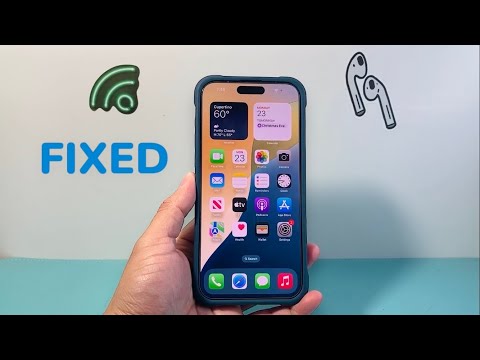
1. The "Plus" Menu Consolidation

In iOS 18, Apple has transitioned several individual tool icons into a unified (+) button located on the left side of the keyboard toolbar. If your camera icon is missing, it has likely been nested within this menu to reduce visual clutter. Simply tap the (+) icon to reveal the expanded menu containing "Take Photo or Video," "Scan Document," and "Scan Text." This structural change is designed to optimize the workspace for future Apple Intelligence OCR (Optical Character Recognition) features.
2. Verifying iCloud and Account Sync Logic
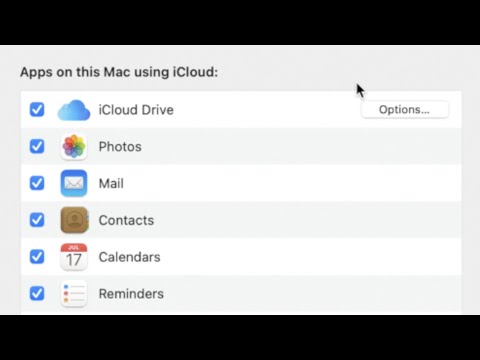
Sometimes, the camera functionality is suppressed if the current note is stored on a legacy third-party server (like Yahoo or an old IMAP account) that does not support advanced media attachments. Ensure your note is created under your iCloud account. Go to Settings > Notes > Accounts and ensure that your primary iCloud account is active. AI features and advanced scanning logic are exclusively available for notes synced via the Apple ecosystem.
3. Screen Time and Privacy Restrictions

The iOS 18 update may occasionally reset certain Privacy and Security parameters. If the camera icon is absent from the (+) menu as well, follow this path: Settings > Screen Time > Content & Privacy Restrictions > Allowed Apps. Ensure that the Camera toggle is switched to "On." If this is disabled, the Notes app cannot invoke the camera API, leading to the icon being stripped from the UI entirely to prevent software conflicts.
4. Resetting the Keyboard Dictionary
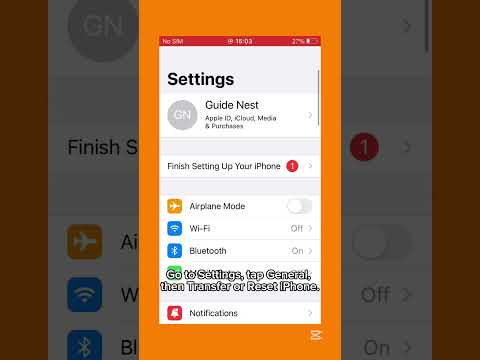
Since the Notes toolbar is technically an extension of the iOS keyboard framework, a corrupted keyboard cache can cause rendering issues with dynamic icons. To fix this, navigate to Settings > General > Transfer or Reset iPhone > Reset > Reset Keyboard Dictionary. This force-reloads the UI assets for all input-related toolbars, often restoring missing automation shortcuts and icons.
AI Implementation Score
| Metric | Score (1-10) | Notes |
|---|---|---|
| Ease of Fix | 9/10 | Mostly involves UI navigation and settings toggles. |
| Automation Potential | 7/10 | Future iOS 18.x updates will likely automate this via Siri. |
| Data Integrity | 10/10 | No risk of data loss during these troubleshooting steps. |
| UX Improvement | 8/10 | Restores high-speed document scanning workflows. |
By following these steps, you align your device with the new iOS 18 software logic, ensuring that your workflow efficiency and document digitization capabilities remain uninterrupted.
