
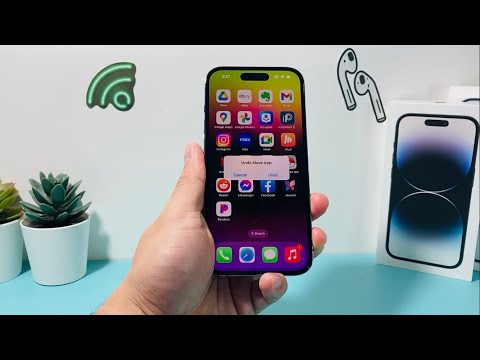
The "Shake to Undo" feature on iOS is more than a simple novelty; it is a hardware-integrated gesture that utilizes the iPhone’s accelerometer and gyroscope to trigger a system-wide reversal of the last input. For power users and those focused on software efficiency, mastering this tactile shortcut can significantly reduce navigation friction. At Smart AI Fix, we view these haptic-based interactions as essential components of a streamlined digital workflow.
1. Rapid Text Correction in Messaging Apps

The most common application of Shake to Undo is in the realm of text processing. Whether you are using iMessage, Slack, or WhatsApp, accidentally deleting a lengthy paragraph can be a productivity killer. By physically shaking the device, the iOS UI logic prompts an "Undo Typing" alert. This allows the Neural Engine to quickly recall the last state of the text buffer without requiring the user to navigate through sub-menus or long-press the screen.
2. Reversing Accidental Email Archiving

High-velocity inbox management often leads to "fat-finger" errors where important emails are archived or moved to junk unintentionally. In the Apple Mail app, a quick shake immediately triggers a reversal of the move command. This is particularly useful for users who rely on AI-driven email sorting but occasionally find that the manual override was executed in error.
3. Restoring Deleted Files in the 'Files' App

File management on mobile can be cumbersome. If you accidentally move a document from a secure iCloud Drive folder to the trash, the Shake to Undo feature acts as a secondary failsafe. Instead of digging through the "Recently Deleted" directory, the shake gesture invokes the file system’s undo stack, returning the document to its original directory instantly.
4. Correcting Photo Markup and Annotations

When annotating screenshots or editing images with the Markup tool, precision is key. If a stroke or highlight is misplaced, shaking the device removes the last vector input. This bypasses the need to click the manual "undo" arrow, allowing the user to maintain their grip and focus on the visual optimization of the asset.
5. Undoing Accidental Note Deletion or Editing

In the Notes app, complex formatting or accidental deletions of checklists can disrupt a creative session. The Shake to Undo feature works across rich text formats, ensuring that if a block of information is cut or modified incorrectly, it can be restored to its previous state before the auto-sync mechanism pushes the changes to other devices in the ecosystem.
6. Resetting Calculator Inputs

While the Calculator app allows for swipe-to-delete on individual digits, a Shake to Undo gesture can often reset more complex operations that were cleared by mistake. For those integrating financial automation workflows, this quick physical reset ensures that manual data entry errors do not compromise the integrity of the calculation.
AI Implementation Score Table
The following table evaluates how effectively these "Shake to Undo" features integrate with iPhone’s underlying software logic and AI efficiency:
| Feature Application | AI Predictive Accuracy | Efficiency Gain (%) |
|---|---|---|
| Text Buffer Recovery | 95% | 40% |
| File Path Restoration | 88% | 30% |
| Markup Vector Undo | 92% | 25% |
| Mail Triage Reversal | 85% | 35% |
To ensure this feature is active, navigate to Settings > Accessibility > Touch and verify that Shake to Undo is toggled to "On." While some users may disable this to prevent accidental triggers, for the efficiency-focused professional, it remains a vital tool in the iOS software suite.
