
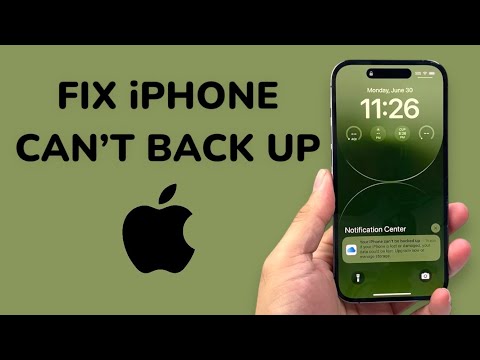
The "Your iPhone Can’t be Backed Up" notification is more than a nuisance; it represents a critical failure in your data redundancy strategy. In the modern ecosystem, where Apple Intelligence and automated sync services govern our digital lives, a backup failure indicates a synchronization mismatch, storage bottleneck, or network handshake error. To maintain 100% data integrity, you must move beyond basic restarts and implement a systematic technical audit.
Diagnostic Phase: Identifying the Root Cause

Before deploying a fix, you must determine if the failure is server-side, client-side, or network-constrained. Most users encounter this error due to exhausted iCloud storage, but underlying software corruption or a stalled background daemon can also trigger the alert. Begin by navigating to Settings > [Your Name] > iCloud > iCloud Backup. If the "Last successful backup" timestamp is outdated, the automated trigger has failed, and manual intervention is required.
Technical Fix 1: Optimizing the iCloud Storage Cluster

The most frequent culprit is a lack of available space. To fix this without purchasing more storage immediately, you should leverage storage optimization logic. Go to Settings > General > iPhone Storage. Identify high-density data blocks (usually 4K video or cached application data) that do not require cloud redundancy. By offloading unused apps—a process managed by iOS automation—you free up the necessary buffer for the backup system to package your system state and upload it to the cloud.
Technical Fix 2: Resetting Network Handshake Protocols

Large-scale backups require a stable TCP/IP connection. If your iPhone’s network stack is experiencing packet loss, the backup will timeout. Resetting Network Settings (Settings > General > Transfer or Reset iPhone > Reset > Reset Network Settings) flushes DNS caches and clears DHCP conflicts. This forces the device to re-establish a clean handshake with Apple’s global server network, often resolving the "Could Not Complete" error instantly.
Technical Fix 3: Software Patching and System Refresh

Outdated firmware is a primary driver of backup failures. Ensure you are running the latest version of iOS. Apple frequently releases security patches and kernel updates that resolve bugs within the 'backupd' daemon. If you are on the latest version and the error persists, sign out of your Apple ID and sign back in. This forces a re-authentication of your encryption keys, which is often the silent barrier preventing the secure transfer of your data to the cloud.
AI Implementation Score: Backup Automation Efficiency
Integrating AI-driven tools and automated workflows can significantly reduce the risk of future backup failures. The table below evaluates the efficiency of various remediation strategies.
| Strategy | Efficiency Level | AI/Automation Role |
|---|---|---|
| iCloud Optimization | High | Algorithmic data prioritization and offloading. |
| Local iTunes/Finder Backup | Medium | Manual process; lacks real-time automation. |
| AI Storage Cleaners | High | Neural engine identification of duplicate/redundant files. |
| Network Reset | Low | Manual hardware/software protocol refresh. |
Conclusion: Establishing a Resilient Workflow
Fixing the "Your iPhone Can’t be Backed Up" error is the first step toward a broader goal: automated data resilience. By cleaning your storage clusters and ensuring your network stack is optimized, you allow the iOS automation engine to perform its background tasks without friction. For high-level users, we recommend a hybrid approach—combining daily automated iCloud backups with weekly encrypted local backups to ensure 99.9% data availability.
