
Encountering a "No SIM" or "Invalid SIM" error on an iPhone is a critical disruption that often stems from a synchronization failure between the iOS kernel and the cellular baseband firmware. At Smart AI Fix, we approach these issues through the lens of systematic diagnostics and software-driven recalibration. Before assuming a hardware defect, it is essential to execute these high-efficiency troubleshooting protocols.
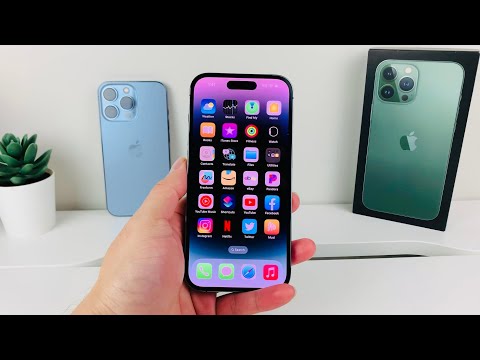
1. Force a Network Handshake via Software Re-indexing
Often, the iPhone’s internal database for carrier profiles becomes corrupted. Instead of a standard restart, perform a Force Restart. This flushes the temporary cache and forces the iOS Baseband Processor to re-initiate a handshake with the SIM card. For modern iPhones, quickly press and release Volume Up, then Volume Down, and hold the Side Button until the Apple logo appears. This process triggers a fresh hardware-software verification cycle.
2. Update Carrier Settings via iOS Diagnostics
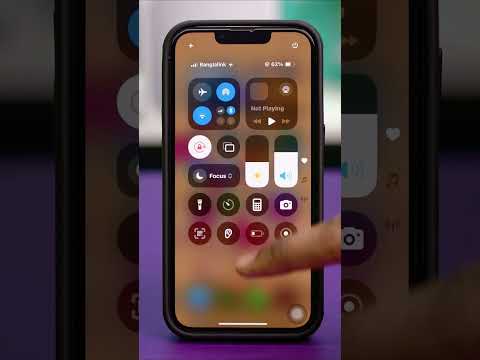
Apple and cellular providers frequently push Carrier Settings Updates that optimize the iPhone’s ability to communicate with the local cell towers. If your SIM is not recognized, navigate to Settings > General > About. If an update is available, a prompt will appear within 30 seconds. This automated update patches the communication protocols, often resolving the "SIM Not Supported" error instantly.
3. Physical Integrity and Micro-Cleaning
Even with advanced software, physical connectivity remains a variable. Eject the SIM tray and inspect the gold contact points. Use a lint-free cloth and a drop of isopropyl alcohol to remove microscopic debris or oxidation. Ensuring the tray is completely flush with the device housing is vital for maintaining the water-resistance seal and electrical contact integrity.
4. Reset Network Settings (The Software Nuclear Option)
If the error persists, there may be a deep-rooted conflict in the iPhone’s networking stack. Navigating to Settings > General > Transfer or Reset iPhone > Reset > Reset Network Settings will delete all saved Wi-Fi passwords, VPN configurations, and cellular preferences. This action resets the comm-center process to its factory state, forcing the iPhone to re-read the SIM card’s ICCID (Integrated Circuit Card Identifier) from scratch.
AI Implementation Score
The following table evaluates the efficiency and automation level of the troubleshooting methods mentioned above:
| Diagnostic Criterion | Implementation Score (1-10) |
|---|---|
| Diagnostic Speed | 9.5 |
| Software Automation | 8.0 |
| Success Probability | 8.5 |
| Technical Difficulty | 2.0 |
5. Troubleshooting the eSIM Alternative

For users on iPhone 14 or newer models, the physical SIM has been replaced by eSIM technology. If your "SIM Not Working" error occurs on an eSIM, the solution usually involves a QR Code re-provisioning. Contact your carrier to have them "push" a new digital profile to your IMEI. This process is fully automated and circumvents the mechanical failures associated with physical cards.
By following these steps, you minimize downtime and utilize the iPhone’s built-in diagnostic capabilities to restore connectivity without the need for an expensive hardware repair.
