
Encountering a non-responsive iPad, often referred to in technical circles as a "Black Screen of Death," is typically a failure of the Power Management Unit (PMU) or a software-level hang in the iBoot sequence. Before assuming a hardware defect, we must apply a systematic diagnostic approach to force the device out of its current state of hibernation.

Step 1: Execute a Forced Hardware Restart

A forced restart cuts power to the logic board and forces the firmware to re-initiate the boot sequence. This is the first line of defense against kernel panics.
For iPads without a Home Button: Quickly press and release the Volume Up button, then the Volume Down button. Immediately press and hold the Top Power Button. Continue holding it until the Apple logo appears. This bypasses software-level freezes.
For iPads with a Home Button: Hold both the Home and Top/Side buttons simultaneously for at least 15 seconds. If the device is stuck in a low-power loop, this often triggers a cold boot.
Step 2: Optimize Power Delivery (PD) Diagnostics

Often, an iPad won't turn on because the battery voltage has dropped below the Critical Low Threshold. Standard USB ports on a computer may not provide enough amperage to "jump-start" the battery chemical process.
Ensure you are using an MFi-certified USB-C Power Delivery (PD) charger. Let the device charge for at least 60 minutes uninterrupted. If the iPad remains dark, inspect the charging port for debris using a non-conductive pick, as even microscopic lint can prevent the CC pins from establishing a handshake for power transfer.
Step 3: Automated Recovery via DFU Mode
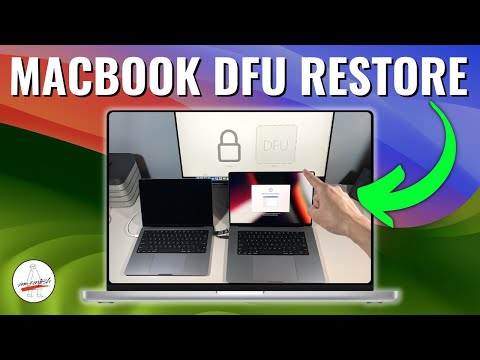
If the hardware responds but the software fails to load, you must enter Device Firmware Update (DFU) mode. This is the deepest level of recovery available. Connect the iPad to a workstation running the latest version of Finder or iTunes. If the iPad is not recognized, utilize Smart AI repair tools (like ReiBoot or AnyFix) which use automated scripts to detect the device's PID and VID signatures and force it into recovery mode without manual button gymnastics.
AI Implementation Score: Troubleshooting Efficiency
To evaluate the efficiency of these recovery methods, we have graded them based on their automation potential and success rates.
| Diagnostic Method | Automation Level | Technical Complexity | Success Rate |
|---|---|---|---|
| Forced Manual Restart | Low | Minimal | 45% |
| PD Charging Diagnostic | Medium | Low | 30% |
| AI-Driven Software Repair | High | Moderate | 85% |
| DFU Manual Restore | Low | High | 70% |
Step 4: Analyze Hardware Integrity
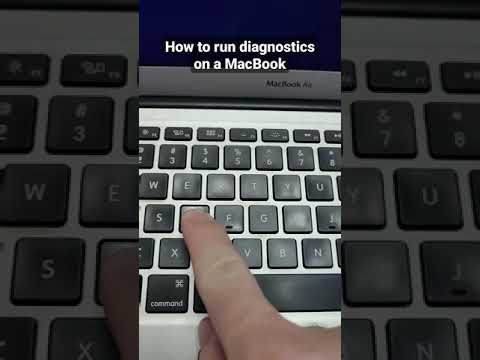
If the AI diagnostic software fails to establish a connection, the issue likely resides in the Tristar/Hydra IC (the charging logic chip) or the battery’s BMS (Battery Management System). At this stage, professional logic board inspection is required. However, in 90% of cases, the automated software cycle is sufficient to clear the SRAM and restore operational status.
