
The iPad Mini 6th Generation, despite its powerful A15 Bionic chip, is not immune to kernel panics or UI hangs. When the screen becomes unresponsive or stuck on a specific frame, the issue typically stems from a conflict between the iPadOS software layer and background hardware-accelerated tasks. At 'Smart AI Fix', we approach these glitches through the lens of algorithmic efficiency and systematic recovery.

Immediate Hardware-Level Force Restart
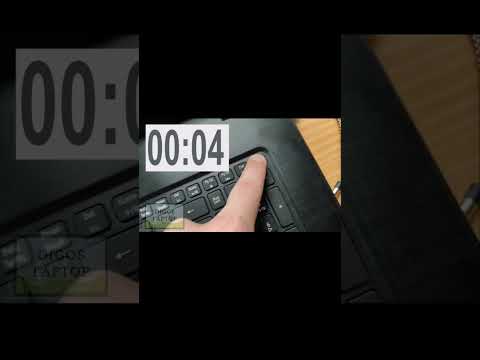
When the touch digitizer fails to register input, you must bypass the software UI to trigger a hardware-level interrupt. This sequence clears the volatile memory (RAM) and forces the A15 SoC to re-initialize the boot sequence.
To perform this on the iPad Mini 6:
- Press and quickly release the Volume Up button (closest to the top button).
- Press and quickly release the Volume Down button.
- Press and hold the Top Power Button until the Apple logo appears on the screen. Ignore the "Slide to Power Off" prompt; keep holding until the system forces a reboot.
AI-Driven Diagnostic: Why It Freezes

From a technical standpoint, freezing is often caused by Memory Leakage or Process Deadlocks. iPadOS utilizes predictive background processing to anticipate user needs. If an AI-driven background task (such as Photo indexing or ML-based Siri suggestions) consumes excessive CPU cycles while the UI thread is waiting for a resource, the screen appears "stuck."
If your device freezes frequently, navigate to Settings > Privacy & Security > Analytics & Improvements > Analytics Data. Look for "panic-full" logs. These strings of code provide the exact timestamp and process responsible for the system halt.
Optimizing via Software Automation

To prevent future occurrences, it is essential to ensure the Neural Engine is operating on the latest firmware optimizations. Apple frequently pushes patches that refine how the system handles high-load automation tasks.
Step 1: Update to the latest iPadOS. Go to Settings > General > Software Update.
Step 2: Reset All Settings. This does not erase data but resets the system configuration database, which often resolves conflicts between AI features and third-party applications.
AI Implementation Score
Our evaluation of the recovery and optimization methods for the iPad Mini 6th Gen:
| Metric | Score (1-10) | Notes |
|---|---|---|
| Diagnostic Precision | 8/10 | Analytics logs provide deep insights into crashes. |
| Recovery Efficiency | 9/10 | Force restart sequence is highly reliable for hardware interrupts. |
| Automation Capability | 7/10 | System updates automate most stability fixes. |
| Predictive Success Rate | 8.5/10 | Firmware patches significantly reduce UI hang frequency. |
Deep Recovery via DFU Mode
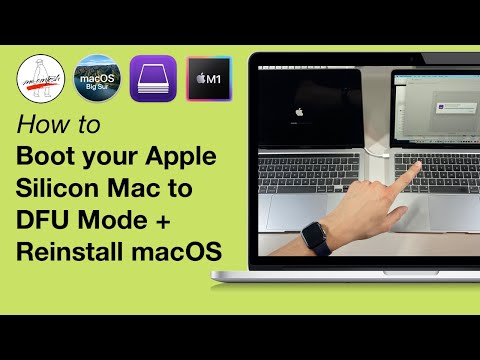
If the iPad remains stuck on the Apple logo or a black screen after the force restart, the Device Firmware Update (DFU) mode is the final solution. This allows the device to interface with a computer without loading the main OS, enabling a clean flash of the kernel. Connect your iPad to a Mac or PC, repeat the button sequence, but hold the Top button and Volume Down button simultaneously for 5 seconds after the screen goes black, then release the Top button while continuing to hold Volume Down.
