
Bridging the Gap: Integrating External Storage with iOS Efficiency

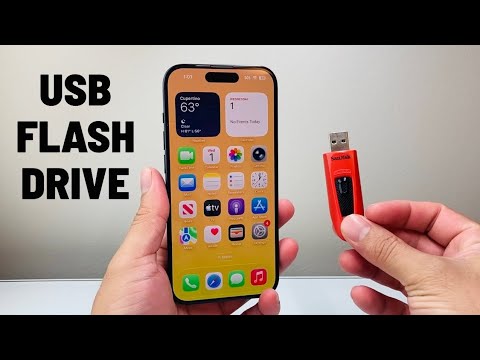
Modern workflow optimization requires the ability to move large datasets, high-resolution media, and local backups without relying solely on cloud latency. As a Senior Tech Blogger for Smart AI Fix, I prioritize solutions that leverage the underlying software architecture of iOS to maximize data throughput. Whether you are using a legacy Lightning device or the latest USB-C iPhone 15/16 series, connecting a USB flash drive is now a native, plug-and-play operation managed by the Files app.
Hardware Prerequisites for Seamless Connectivity
The method of connection depends entirely on your iPhone’s hardware interface. To ensure maximum efficiency and avoid data corruption, use high-quality adapters or MFi-certified drives.
For iPhone 15 and 16 Series (USB-C): These devices support direct connection. You can plug a USB-C flash drive directly into the port. If your drive is USB-A, a standard USB-C to USB Adapter is required.
For iPhone 14 and Older (Lightning): You must use a Lightning to USB 3 Camera Adapter. It is highly recommended to use the version with a secondary Lightning port for power delivery, as many flash drives require more power than a standard Lightning port can provide.
Step-by-Step Software Implementation

Once the hardware is connected, iOS uses its automated mounting system to recognize the volume. Follow these steps to manage your files:
1. Connect the Drive: Plug the USB drive into your iPhone (or adapter). 2. Launch the Files App: This is the native file manager for iOS. If you cannot find it, use Spotlight Search. 3. Locate the Volume: Tap the "Browse" tab at the bottom right. Under the "Locations" section, you will see the name of your USB flash drive appearing alongside "On My iPhone" and "iCloud Drive." 4. Data Transfer: To move files from your iPhone to the drive, select the file, tap the Share icon, and choose "Save to Files." Select your USB drive as the destination.
AI-Driven File Management and Automation

At Smart AI Fix, we look for ways to automate these manual tasks. By using the Shortcuts app, you can create an automation that triggers when a specific drive is connected. For example, you can set an AI-assisted shortcut to automatically move your latest "Screenshots" or "Downloads" to the external drive to save internal NAND flash space.
AI Implementation Score
This table evaluates the efficiency of using external storage on iOS through the lens of automation and software integration.
| Metric | Score (1-10) | Notes |
|---|---|---|
| Ease of Use | 9 | Native plug-and-play support in the Files app. |
| Data Transfer Speed | 8 | Limited by the drive's spec and iPhone's port (USB 2.0 vs 3.0). |
| Automation Potential | 7 | Can be enhanced significantly via the Shortcuts app. |
| AI Search Indexing | 6 | iOS indexes drive metadata, but deep content AI search is evolving. |
Pro Tip: Always ensure your USB drive is formatted as ExFAT or APFS. Windows-specific formats like NTFS are read-only on iOS, which limits your ability to write or modify data on the drive.
