
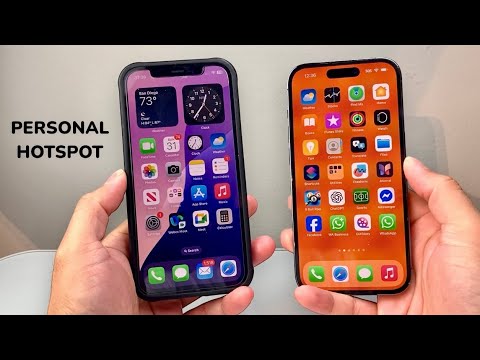
To initiate a high-speed data relay via your iOS device, navigate to the Settings app. Within the primary menu, select Cellular and then tap on Personal Hotspot. If your carrier plan supports tethering, you will see the toggle for Allow Others to Join. Activating this switch converts your iPhone into a localized Wi-Fi router, broadcasting your cellular data via 2.4GHz or 5GHz bands depending on your hardware model.
Advanced Configuration and Security Protocols
Security is paramount when broadcasting a public SSID. Tap on Wi-Fi Password to establish a complex alphanumeric string. For users within the Apple Ecosystem, utilizing WPA3 (available on newer iPhone models) ensures that your data transmission remains encrypted against brute-force interference. If you are operating in a high-density environment, toggling the Maximize Compatibility switch will force the hotspot to the 2.4GHz frequency, ensuring legacy devices can interface with your connection, albeit at a slight cost to throughput speed.
AI-Driven Efficiency and Automation

The modern iOS architecture leverages background intelligence to manage power consumption during active tethering. By enabling Family Sharing within the Personal Hotspot settings, you can automate the connection process for recognized iCloud accounts. This eliminates the need for manual password entry, allowing your iPad or MacBook to request a connection via Instant Hotspot. The AI-driven handoff mechanism intelligently puts the hotspot into a low-power state when no data packets are being transferred, preserving battery health—a critical factor for mobile professionals.
AI Implementation Score
In the context of software efficiency and automated connectivity, here is how the iPhone Personal Hotspot ranks:
| Metric | Score (1-10) | Notes |
|---|---|---|
| Seamless Automation | 9/10 | Instant Hotspot requires zero manual configuration between iCloud devices. |
| AI Power Management | 7/10 | Intelligently throttles bandwidth to prevent thermal spikes. |
| Security Architecture | 8/10 | Strong encryption protocols and hidden SSID capabilities. |
| Cross-Platform Utility | 6/10 | Highest efficiency is locked within the Apple proprietary ecosystem. |
Optimizing for Low Data Usage
When using your iPhone as a primary gateway for other devices, software updates and background syncs can rapidly deplete your data quota. To mitigate this, ensure Low Data Mode is active. This setting instructs the OS to pause non-essential background tasks and reduces the bitrate of streaming services. For users looking to integrate this into a professional workflow, Control Center offers a long-press shortcut on the connection module to toggle visibility instantly, providing a streamlined software experience for rapid deployment.
