
Understanding Dual SIM Architecture on the iPhone 16 Series

The iPhone 16, 16 Plus, and 16 Pro Max continue to refine the multi-network experience by utilizing a combination of a physical Nano-SIM and a robust eSIM (embedded SIM) infrastructure. In many regions, the iPhone 16 supports either one physical SIM and one eSIM, or two active eSIMs simultaneously. This hardware flexibility is enhanced by iOS 18’s AI-driven network management, which optimizes signal switching and data throughput without manual intervention.
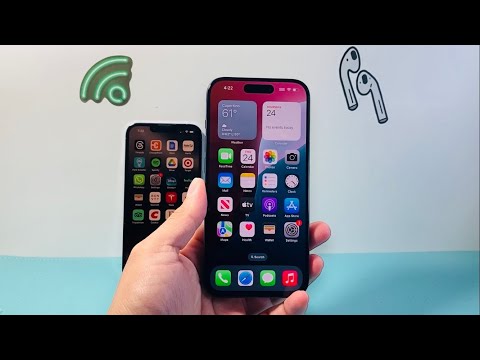
Step 1: Installing the Physical Nano-SIM

To begin your dual SIM setup, locate the SIM tray on the side of your iPhone 16. Use a SIM-eject tool to pop the tray open. Place your primary Nano-SIM card into the tray, ensuring the notched corner aligns perfectly. Once inserted, the iOS 18 software will automatically detect the carrier settings. However, to maximize efficiency, we recommend using the physical slot for your legacy carrier and reserving the eSIM slots for travel or data-heavy secondary lines.
Step 2: Activating and Automating the eSIM
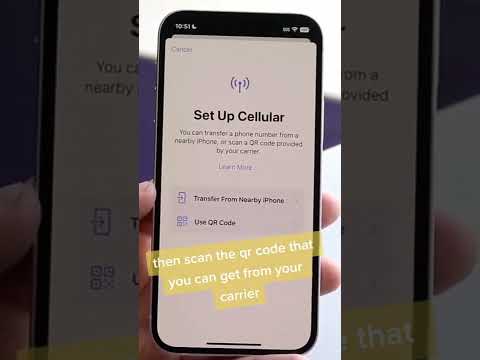
Setting up the second line via eSIM is a digitized process that leverages Smart AI Fix principles—removing physical friction through software automation. Navigate to Settings > Cellular > Add eSIM. You can choose to transfer a SIM from a nearby iPhone or use a QR Code provided by your carrier. Once scanned, the iPhone 16’s neural engine works in the background to register the ICCID and activate the network profile within seconds.
Managing Dual Lines with AI Efficiency

Once both lines are active, you must label them (e.g., "Business" and "Personal"). The iPhone 16 Pro Max uses machine learning to learn your communication patterns. For example, if you consistently call a specific contact using your "Business" line, Apple Intelligence will suggest that line as the default for future interactions with that contact. You can also toggle "Allow Cellular Data Switching," which enables the AI to jump to the strongest network if your primary line suffers from high latency or packet loss.
AI Implementation Score
To evaluate how effectively the iPhone 16 handles Dual SIM automation, we have graded the implementation based on AI integration and user efficiency:
| Metric | Score (1-10) | Notes |
|---|---|---|
| Setup Automation | 9.5 | Near-instant eSIM activation and transfer. |
| Network Switching | 9.0 | AI-driven logic prevents data drops during handovers. |
| Contextual Awareness | 8.5 | Smart suggestions for line selection based on contacts. |
| Resource Optimization | 9.2 | Minimal battery drain when maintaining dual standby. |
Advanced Configuration: Data and Voice Defaults
To finalize your setup on the iPhone 16 Pro, go to Settings > Cellular. Here, you can define which line is used for iMessage and FaceTime. For power users, the most critical setting is Default Voice Line. By selecting a default, you ensure that the AI doesn't have to prompt you for every outgoing call, streamlining your workflow. If you are using a 5G data plan on one line and a 4G plan on the other, ensure the 5G line is set as the Cellular Data source to take advantage of the A18 Pro chip's high-speed modem capabilities.
By leveraging these dual SIM capabilities, the iPhone 16 series acts as a centralized communication hub, using internal automation to manage complex networking tasks that previously required manual toggling.
