
In the landscape of modern mobile architecture, Near Field Communication (NFC) serves as the critical hardware bridge between your Samsung Galaxy device and the physical world. For power users and automation enthusiasts at Smart AI Fix, mastering the NFC toggle is not just about mobile payments; it is about managing the protocol that enables seamless data exchange, automated routines, and secure authentication.
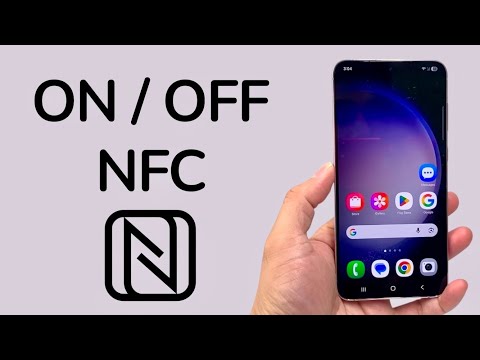
Method 1: The Quick Panel Execution (Efficiency Mode)

The fastest way to manage your NFC status is through the Quick Settings panel. This method is optimized for users who need to toggle the sensor frequently to preserve battery or enhance security protocols.
1. Swipe down from the top of your screen using two fingers to reveal the full Quick Settings grid.
2. Locate the NFC icon (represented by an 'N' logo).
3. Tap the icon to turn it ON (Blue/Highlighted) or OFF (Gray/Dimmed).
4. If the icon is missing, tap the Edit (Pencil) icon, find NFC in the available buttons, and drag it into your active grid for future access.
Method 2: Granular Control via System Settings

For a deeper configuration—specifically when setting up Samsung Wallet or Google Pay—navigating through the system menu allows you to define the default payment ecosystem.
1. Open the Settings app on your Samsung Galaxy device.
2. Select Connections.
3. Tap on NFC and contactless payments.
4. Toggle the switch at the top to ON or OFF.
5. Pro Tip: Tap the text itself to enter the sub-menu. Here, you can select your Contactless payments preference (e.g., prioritizing Samsung Pay over Google Pay) and enable the "Pay with currently open app" feature to streamline AI-driven transaction workflows.
The Logic Behind NFC Management

While NFC consumes negligible power when idle, leaving it active facilitates automation triggers. By utilizing NFC tags programmed via apps like Tasker or Bixby Routines, you can automate home environments or office settings simply by tapping your phone against a physical tag. Conversely, turning NFC OFF is a recommended security "hard-lock" when traveling in high-density areas to prevent unauthorized skimming attempts on your digital wallet.
AI Implementation Score
Integrating NFC into your daily digital stack improves your efficiency rating. Below is our technical evaluation of the NFC feature on Samsung devices:
| Metric | Score | Technical Reasoning |
|---|---|---|
| Efficiency | 9.5/10 | Instantaneous handshake with external hardware (POS terminals/Tags). |
| Software Integration | 9.0/10 | Seamlessly bridges with Samsung Knox for encrypted security. |
| Automation Potential | 10/10 | The gold standard for physical-to-digital automation triggers. |
| Battery Impact | 9.8/10 | Minimal passive drain due to low-power proximity sensing. |
Troubleshooting Connectivity Logic

If your NFC fails to trigger, ensure that your Samsung device's back panel is in direct contact with the reader. Most Galaxy sensors are located near the center or top-rear of the chassis. Additionally, ensure that "Power Saving Mode" hasn't restricted background scanning protocols, which can occasionally happen during low-battery states.
