
Privacy management is a cornerstone of digital hygiene, particularly when optimizing your mobile workflow. On Android devices, Incognito Mode (or "Secret Mode" on Samsung) serves as a critical sandbox that prevents your browsing history, cookies, and site data from being stored locally. For users focused on AI efficiency, using private sessions ensures that one-off searches do not interfere with your personalized search algorithms or predictive AI suggestions.

How to Turn ON Incognito Mode on Chrome (Standard Android)
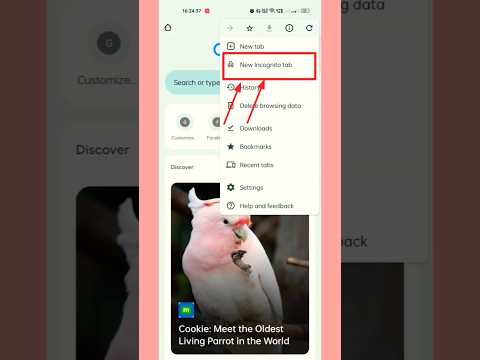
Most Android devices rely on Google Chrome as the default engine. Activating a private session is a streamlined process designed for rapid execution.
1. Open the Chrome app on your Android device.
2. Tap the three vertical dots (Menu) located in the top-right corner.
3. Select New Incognito tab.
Once activated, the browser interface will turn dark, and a specialized icon will appear in the status bar, signaling that your local activity is no longer being logged.
How to Turn OFF Incognito Mode on Chrome

Exiting private browsing is essential to return to your personalized AI-driven environment where history and bookmarks are synced.
1. Open Chrome and tap the Switch Tabs icon (the square with a number) at the top right.
2. Swipe to the right to view your open Incognito tabs.
3. Tap the "X" on each tab or select the menu and tap Close Incognito tabs.
Activating Secret Mode on Samsung Devices

Samsung Galaxy users often utilize the proprietary Samsung Internet browser, which features "Secret Mode." This version offers enhanced security features, including the ability to lock private sessions with a password or biometrics.
1. Launch Samsung Internet.
2. Tap the Tabs Manager icon at the bottom of the screen.
3. Select Turn on Secret Mode. (You may be prompted to set a password for added automation security).
4. To turn it off, return to the Tabs Manager and tap Turn off Secret Mode.
AI Implementation Score: Privacy Management
The following table evaluates the efficiency of Incognito Mode in the context of software automation and data privacy.
| Metric | Score (1-10) | Notes |
|---|---|---|
| Ease of Automation | 9/10 | Accessible via two taps on all Android builds. |
| Data Privacy Efficiency | 8/10 | Prevents local tracking; does not hide traffic from ISPs. |
| Algorithmic Integrity | 10/10 | Prevents "noise" from affecting AI search personalization. |
Why Incognito Matters for Power Users

From a software optimization perspective, Incognito Mode is more than a privacy tool; it is a debugging environment. By disabling extensions and cached data, it allows you to view websites in their "cleanest" state. For those integrating AI tools or automated workflows, this ensures that your session data remains segmented, preventing cross-contamination of cookies that can sometimes trigger security flags in sensitive web applications.
