
Activating the Flashlight via watchOS Control Center
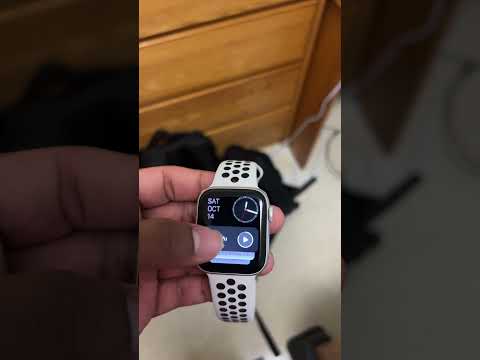
To turn on the flashlight on your Apple Watch, you must access the Control Center. Since the release of watchOS 10, the method to access this menu has changed. Simply press the Side Button once (the flat button below the Digital Crown). If you are running an older version of watchOS, swipe up from the bottom of the watch face.
Once the Control Center is visible, scroll through the icons and tap the Flashlight icon. Your screen will immediately turn into a bright white light. Note that the display remains dimmed until you turn your wrist away from your face; this is an automated software optimization designed to protect your vision while allowing the device to reach maximum lumen output when pointed at an object.
Navigating Flashlight Modes and Customization

The Apple Watch flashlight is not limited to a single static beam. It utilizes software-defined modes to cater to different environmental needs. Once the flashlight is active, you can swipe left on the screen to toggle between three distinct modes:
1. Steady White Light: The standard high-intensity mode for general illumination.
2. Flashing White Light: A strobe effect designed for safety and visibility during night runs or emergency signaling.
3. Steady Red Light: A low-wavelength mode that allows for visibility without compromising your natural night vision or disturbing others in dark environments.
Deactivating the Flashlight
To turn off the flashlight, you do not need to navigate back to the Control Center. You can simply press the Digital Crown or swipe down from the top of the screen. Additionally, covering the watch face with your palm for a split second will trigger the proximity sensor automation, instantly turning off the light and returning you to your watch face.
AI Implementation Score
In the context of Smart AI Fix, we evaluate how hardware and software synergy creates an efficient user experience. The Apple Watch flashlight leverages ambient light sensors and power management algorithms to ensure peak performance without excessive battery drain.
| Metric | Score | Technical Reasoning |
|---|---|---|
| Sensor Integration | 9.5/10 | Uses lux sensors to auto-calibrate brightness based on environment. |
| Power Automation | 9.0/10 | Dynamic refresh rate reduction to save battery during use. |
| User Accessibility | 10/10 | Single-button hardware trigger for immediate software response. |
By mastering these shortcuts, you leverage the computational efficiency of your Apple Watch, transforming it from a simple timekeeper into a sophisticated utility tool for low-light navigation.
