
Mastering Driving Focus: Automation and Safety on iOS

With the evolution of iOS, Apple has moved beyond simple silencers to a sophisticated, AI-driven Focus framework. The Driving Focus mode is designed to minimize cognitive load by using on-device machine learning to detect motion and handle incoming telemetry without user intervention. By configuring this mode, you leverage the iPhone’s internal sensors—accelerometer and GPS—to automate your digital boundaries while on the road.
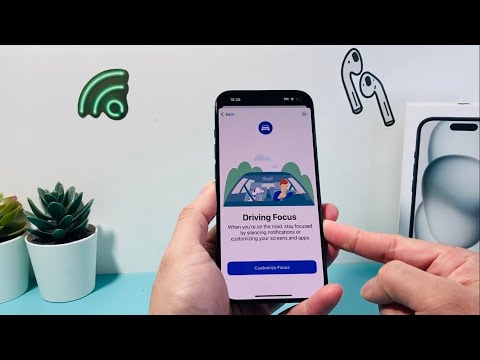
How to Manually Enable and Configure Driving Focus
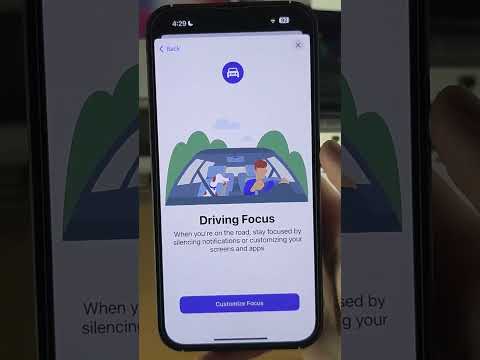
To begin the implementation, you must first initialize the Driving Focus profile within your system settings. This allows the OS to categorize your activity and apply specific notification filters. Follow these steps:
1. Open the Settings app on your iPhone.
2. Navigate to Focus.
3. If "Driving" is not listed, tap the + (Plus) icon in the top right corner and select Driving.
4. Tap Customize Focus to define your parameters. Here, you can select specific contacts who are allowed to bypass the filter in case of emergencies by using Allow Notifications.
Leveraging AI for Automatic Activation

The true power of the Driving Focus lies in its automation capabilities. Instead of manual toggling, you can program the iPhone to trigger the mode based on real-time data inputs. This reduces the friction of manual operation and ensures safety protocols are always active.
Under the Turn On Automatically section within the Driving Focus menu, you have three primary triggers:
1. Automatically: This uses on-device AI to detect motion patterns consistent with driving. The system analyzes velocity and directional changes to activate the mode.
2. When Connected to Car Bluetooth: This is the most reliable hardware-handshake method. The Focus mode activates the moment your iPhone pairs with your vehicle’s infotainment system.
3. Activate with CarPlay: If your vehicle supports CarPlay, the iPhone will automatically enter Driving Focus as soon as the interface initializes.
Advanced Logic: Auto-Reply and Distraction Management

To maintain professional communication without manual input, you can configure Auto-Reply. When an incoming message is intercepted, the AI sends a pre-defined response to the sender. You can customize this to trigger for All Contacts, Favorites, or Recents. To set this up, tap Auto-Reply within the Driving Focus settings and refine your automated message script.
Furthermore, you can toggle Share Focus Status. This informs others that you have notifications silenced via a status update in the Messages app, utilizing the Apple ecosystem's integrated presence logic to manage sender expectations.
AI Implementation Score
The following table evaluates the efficiency and technical sophistication of the iOS Driving Focus feature from a software engineering perspective.
| Metric | Score (1-10) | Technical Notes |
|---|---|---|
| Automation Level | 9/10 | High-level integration with Bluetooth and GPS triggers. |
| Contextual Awareness | 8/10 | Uses motion-sensing ML to differentiate between passenger and driver. |
| UI/UX Logic | 10/10 | Seamless transition and "Urgent" bypass capabilities. |
| Battery Efficiency | 9/10 | Low-energy Bluetooth monitoring ensures minimal drain. |
By implementing these settings, you transform your iPhone from a source of distraction into a safety-conscious assistant that understands your physical environment. Utilizing these automated triggers ensures that your focus remains on the road, while the software manages your digital presence with high-level efficiency.
