
Efficient Methods to Deactivate VoiceOver on iOS

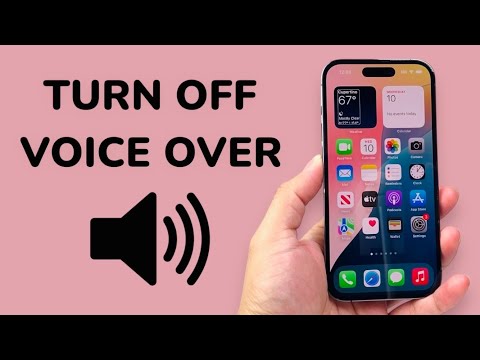
VoiceOver is a sophisticated gesture-based screen reader designed by Apple to provide accessibility for users with visual impairments. While it represents a pinnacle of software-driven inclusivity, it can be highly disruptive for those who activate it unintentionally. When VoiceOver is active, the standard touch interface changes: you must tap once to select an item and double-tap to activate it. To restore your iPhone to its standard operational state and stop the device from "talking back," follow these technical protocols.
Method 1: Leveraging Siri for AI-Driven Deactivation

The most efficient way to bypass manual navigation when VoiceOver is enabled is to use Siri. Since VoiceOver changes the logic of touch interactions, using a voice command eliminates the friction of the double-tap requirement. Simply trigger Siri (hold the Side button or say "Hey Siri") and provide the command: "Turn off VoiceOver." Siri will process the request via the onboard neural engine and disable the feature instantly, providing immediate haptic and auditory confirmation.
Method 2: The Accessibility Triple-Click Shortcut

For users who prefer hardware-level automation, the Accessibility Shortcut is the fastest manual bypass. On iPhone models with Face ID, triple-click the Side button rapidly. On older models with a physical Home button, triple-click the Home button. If VoiceOver is the only accessibility feature assigned to this shortcut, it will toggle off immediately. If multiple features are assigned, a menu will appear; you must tap "VoiceOver" once to highlight it, then double-tap to confirm the deactivation.
Method 3: Manual Software Configuration

If voice commands or hardware shortcuts are unavailable, you must navigate the iOS Settings menu using VoiceOver gestures. Remember the protocol: single-tap to select (indicated by a black outline) and double-tap to execute. Follow this path:
1. Open Settings (tap once, then double-tap).
2. Navigate to Accessibility. You may need to use three fingers to scroll down the menu.
3. Select VoiceOver.
4. Toggle the VoiceOver switch to the "Off" position (double-tap to toggle).
AI Implementation Score: Accessibility Management
| Metric | Score (1-10) | Technical Rationale |
|---|---|---|
| Efficiency | 9.5 | Siri integration provides near-zero latency for UI state changes. |
| Automation | 8.0 | Triple-click shortcuts offer a reliable hardware-to-software override. |
| User Experience | 7.0 | Manual navigation requires high cognitive load due to altered touch logic. |
| Precision | 10.0 | System-level toggles ensure 100% deactivation of the speech engine. |
To prevent future accidental activations, navigate to Settings > Accessibility > Accessibility Shortcut and ensure "VoiceOver" is unchecked. This prevents the triple-click gesture from triggering the feature in the future, optimizing your device's UI for your specific workflow.
