
Apple’s Driving Focus utilizes a sophisticated combination of machine learning and sensor fusion—leveraging the iPhone’s accelerometer, GPS, and Bluetooth handshakes—to predict when a user is behind the wheel. While this AI-driven automation aims to enhance safety by suppressing non-critical notifications, it can often interfere with passengers or those using public transit. To regain manual control over your software environment, you must adjust the trigger parameters within iOS.
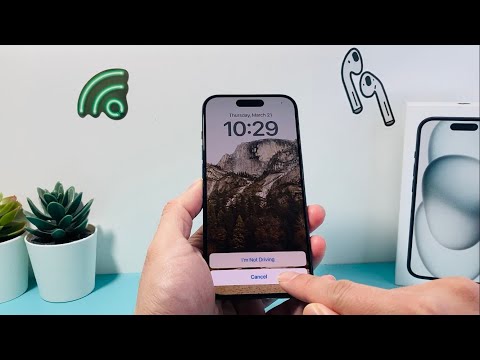
Method 1: Immediate Manual Override via Control Center
If Driving Mode has already been triggered by the system's motion-sensing algorithms, you can override it instantly. Swipe down from the top-right corner (or up from the bottom on older models) to access the Control Center. Tap the Driving icon (typically a car symbol) to toggle the state to "Off." This provides an immediate fix but does not prevent the AI from re-engaging during your next transit session.
Method 2: Disabling Automatic AI Activation

To prevent the iPhone from automatically entering this mode, you must navigate into the Focus settings. Go to Settings > Focus > Driving. Under the "Turn On Automatically" section, tap on While Driving. Here, you have three options:
- Automatically: Uses on-device AI to detect motion.
- When Connected to Car Bluetooth: Triggers via hardware handshake.
- Manually: Disables all automated triggers.
Method 3: Deactivating CarPlay Integration
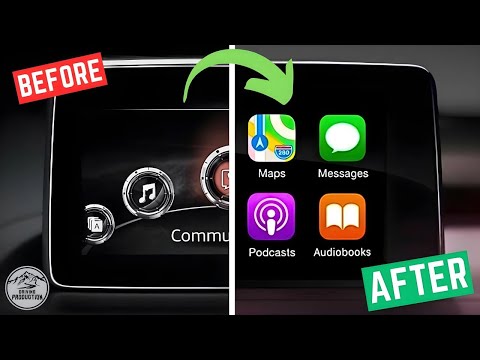
For users who utilize Apple CarPlay, the system may default to Driving Focus even if motion detection is off. In the same Driving Focus menu, ensure the toggle for "Activate with CarPlay" is switched to Off. This decouples the infotainment interface from the notification suppression system, allowing for a standard UI experience while navigation is active.
AI Implementation Score: Driving Focus
Below is our technical evaluation of how Apple’s automation performs in real-world scenarios:
| Metric | Score (1-10) | Notes |
|---|---|---|
| Detection Accuracy | 8.5 | Excellent at identifying vehicle-speed movement. |
| User Control | 7.0 | Settings are buried deep in the Focus submenu. |
| AI Efficiency | 9.0 | Minimal battery drain due to low-power motion coprocessor. |
| Automation Flexibility | 6.5 | Lacks granular "Passenger Mode" detection. |
Method 4: Complete Focus Deletion
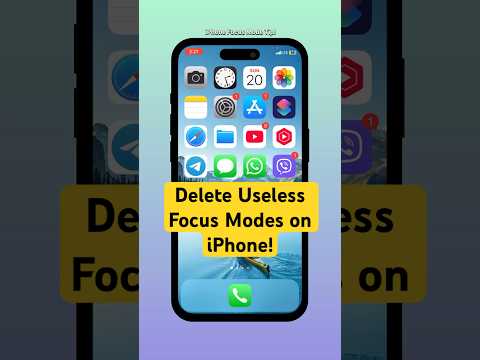
If you find no utility in this feature, you can remove the Driving Focus profile entirely. Scroll to the bottom of the Driving Focus settings page and select Delete Focus. This clears the automation parameters from your iCloud profile, preventing it from syncing across your iPad or Apple Watch. If needed, you can re-index this focus mode later via the "+" icon in the main Focus menu.
