
When upgrading to a new iPhone, the seamless migration of textual data is no longer just a convenience; it is a necessity for maintaining a searchable digital archive. As we transition to more sophisticated hardware, the underlying software automation and AI-driven synchronization protocols ensure that your SMS, MMS, and iMessage history remains intact without manual data entry.

Method 1: Utilizing iCloud Sync and Automated Indexing
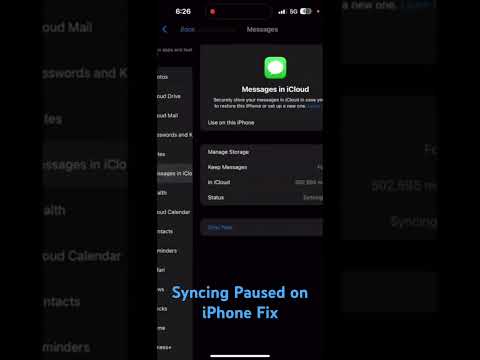
The most efficient way to transfer messages involves leveraging Apple’s iCloud Messages feature. Unlike a standard backup, this method uses real-time synchronization. When you enable this on your old device, your entire message database is uploaded to the cloud, where Apple’s server-side algorithms index the content for rapid retrieval on your new device.
To execute this, navigate to Settings > [Your Name] > iCloud > Show All and ensure Messages is toggled "On." On the new iPhone, sign in with the same Apple ID and repeat the process. The AI background processes will prioritize the most recent threads, gradually downloading the full history as the device optimizes its local storage.
Method 2: Proximity-Based Quick Start (P2P Migration)
For users who prefer a direct device-to-device transfer without relying on cloud storage capacity, Quick Start offers a high-bandwidth local solution. This process utilizes a private Wi-Fi network and Bluetooth to create a peer-to-peer connection. The iOS migration assistant uses predictive data compression to speed up the transfer of large attachments and media within your message threads.
Simply place the new iPhone next to the old one. A prompt will appear on the legacy device asking to set up the new one. During the "Transfer Your Data" phase, select Transfer from iPhone. This method ensures that the exact state of your message database, including pinned conversations and app integrations, is replicated bit-for-bit.
Method 3: Desktop Migration for Large Databases

If your message history spans several years and gigabytes of data, localized automation via a Mac (Finder) or PC (iTunes/Apple Devices app) is recommended. This avoids network latency and potential sync errors. By creating an Encrypted Backup, you ensure that sensitive data—including health data and saved passwords—is included alongside your messages. The software effectively "clones" the message partition of your old device and injects it into the new hardware's file system.
AI Implementation Score
In the context of data migration, we evaluate these methods based on their automation capabilities and computational efficiency.
| Method | Automation Level | AI Efficiency | User Effort |
|---|---|---|---|
| iCloud Sync | High | 95% | Minimal |
| Quick Start | High | 90% | Low |
| Desktop Backup | Moderate | 70% | Manual |
Conclusion on Data Integrity
The shift toward automated data migration has significantly reduced the risk of packet loss during message transfers. Whether you choose the cloud-based indexing of iCloud or the direct P2P pipeline of Quick Start, the modern iOS ecosystem is designed to handle complex database transitions with minimal user intervention. To ensure the highest level of success, always verify that both devices are running the latest version of iOS to maintain compatibility between database schemas.
