
In the current landscape of data management, manual photo backups are increasingly being replaced by automated, intelligent workflows. Transferring high-resolution media from an Android device to a USB drive is no longer just about moving files; it is about optimizing storage architecture and leveraging the Android Open Accessory (AOA) protocol for maximum efficiency.
Method 1: Direct USB OTG (On-The-Go) Transfer
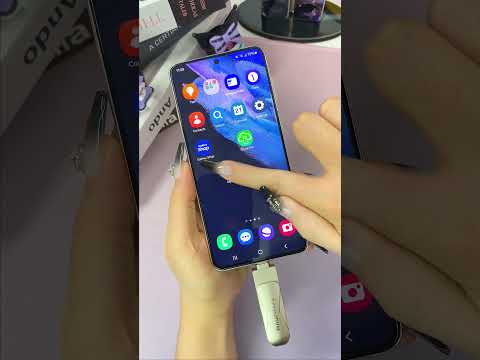
The most direct route for data migration involves USB OTG technology. This allows your Android phone to act as a host device, powering and reading the external flash drive directly. For the modern user, utilizing an AI-integrated file manager like Files by Google is recommended. This software uses machine learning to categorize images, identify duplicates, and suggest which memes or screenshots should be excluded from your permanent backup.
1. Connect your USB drive to your phone using a USB-C OTG adapter.
2. Open the Files by Google app.
3. Navigate to the Images or Videos category.
4. Long-press the files you wish to migrate. Use the "Select All" feature for batch processing.
5. Tap the three-dot menu and select "Move to" or "Copy to".
6. Select your USB Storage device from the destination list.
Method 2: PC-Intermediary via ADB and Smart Sorting
For power users managing terabytes of data, using a workstation as a bridge provides superior throughput. By enabling USB Debugging in Developer Options, you can use ADB (Android Debug Bridge) commands to script the transfer process, ensuring no metadata is lost during the migration.
Connecting the phone via MTP (Media Transfer Protocol) to a Windows or macOS machine allows you to utilize third-party AI software that can automatically sort your photos into folders based on facial recognition or geolocation tags before they ever reach the USB drive. This ensures your external storage remains structured and searchable.
AI Implementation Score
To help you decide which workflow suits your technical requirements, we have rated these methods based on their automation potential and efficiency.
| Transfer Method | Automation Level | AI Optimization | Implementation Score |
|---|---|---|---|
| USB OTG (Manual) | Low | N/A | 4/10 |
| Files by Google (AI-Sorted) | Medium | High (Categorization) | 8/10 |
| ADB Scripting + AI Sorter | High | Very High (Logic-based) | 9.5/10 |
Automating the Workflow with Tasker
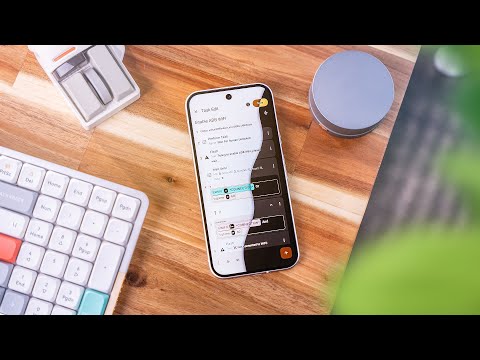
For a "set and forget" experience, senior users can utilize Tasker combined with AutoTools. You can create a profile that detects the specific UUID of your USB drive when plugged in. Once recognized, the script triggers an automated sync of your /DCIM/Camera folder to the external drive, effectively creating a hardware-based "cold storage" backup system without manual intervention.
By implementing these high-level strategies, you transform a mundane file transfer into a robust data redundancy pipeline. Always ensure your USB drive is formatted to exFAT for compatibility with large 4K video files and cross-platform accessibility between Android and desktop environments.
