
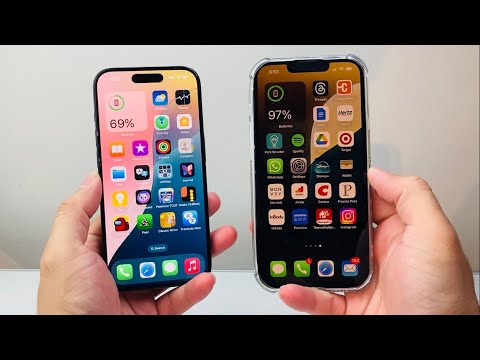
The transition to an all-eSIM architecture in recent flagship models, particularly the iPhone 15 Pro Max, represents a significant shift toward software-defined networking and automated hardware provisioning. At Smart AI Fix, we view the eSIM migration process not just as a settings transfer, but as a sophisticated cryptographic handshake between Apple’s Secure Enclave and carrier infrastructure. Transitioning your cellular plan from an legacy iPhone to the new iPhone 15 series is now a largely autonomous process, powered by iOS background protocols.
Pre-Migration Requirements for Automated Transfer

To ensure the AI-driven Quick Transfer system functions without manual intervention, both devices must meet specific software and connectivity benchmarks. Ensure your old iPhone is running at least iOS 16 or later (though iOS 17 is recommended for the iPhone 15 Pro's optimized hardware). Both devices must have Bluetooth enabled and be placed in close proximity to allow the peer-to-peer discovery mechanism to initialize.
Method 1: Utilizing eSIM Quick Transfer During Initial Setup

The most efficient way to move your digital SIM is during the initial "Out of Box" experience of your iPhone 15 Plus or Pro Max. This method utilizes Apple's proximity-based automation.
1. Power on your new iPhone 15 and place it next to your old device.
2. Follow the on-screen instructions until you reach the "Set Up Cellular" screen.
3. Select "Transfer from Nearby iPhone".
4. On your old iPhone, a notification will appear asking to confirm the transfer. Authenticate using FaceID, TouchID, or your passcode.
5. The iPhone 15 Pro Max will then communicate with your carrier’s server to reissue the digital token. Once the signal bars appear on the new device, the old eSIM is automatically deactivated for security purposes.
Method 2: Post-Setup Manual Migration (The Settings Workflow)
If you skipped the initial setup prompts, you can trigger the automated transfer logic through the iOS Settings menu. This is particularly useful for users who prefer to set up their device as "New" before importing cellular data.
1. On the iPhone 15 Pro, navigate to Settings > Cellular.
2. Tap "Add eSIM".
3. Choose "Transfer From Nearby iPhone" from the list of options.
4. Ensure your old iPhone is unlocked, nearby, and has Bluetooth active.
5. Select the phone number you wish to migrate and follow the prompts. The AI-driven handshake will handle the verification with your provider (e.g., AT&T, Verizon, T-Mobile).
Troubleshooting Carrier-Specific Automation

While Apple’s software facilitates the move, some carriers require an extra layer of verification via their own AI-integrated apps or QR codes. If the "Transfer" button is greyed out, it indicates the carrier's server requires manual authorization. In this instance, download your carrier’s official app on the iPhone 15, sign in, and select "Update Device" or "Swap SIM" to trigger the automated push of the new eSIM profile.
AI Implementation Score: eSIM Migration
| Criteria | Score (1-10) | Tech Analysis |
|---|---|---|
| Automation Level | 9.5 | Zero-touch provisioning in most regions. |
| Security Architecture | 10.0 | Hardware-level encryption via Secure Enclave. |
| User Friction | 2.0 | Minimal manual input required; highly intuitive. |
| Cross-Carrier Sync | 8.5 | Dependent on carrier API maturity. |
By leveraging these automated workflows, the iPhone 15 Pro Max eliminates the need for physical SIM extraction tools, significantly reducing the potential for hardware damage and streamlining the user onboarding experience through intelligent software design.
