
Transitioning to a new iPhone used to be a tedious manual process, but with modern iOS ecosystem automation, transferring your email environment is now nearly instantaneous. In the era of smart software, your email accounts aren't just addresses; they are data hubs that require precise synchronization to ensure zero downtime for your workflow.

The Automated Method: iOS Quick Start and iCloud
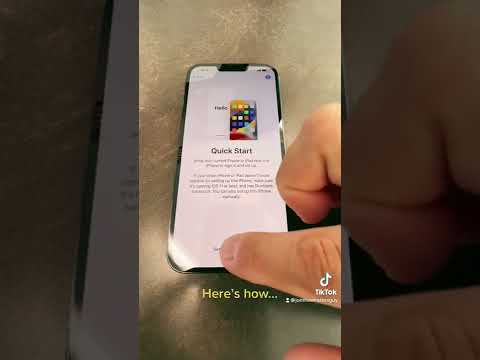
The most efficient way to move your email is by leveraging Apple’s Quick Start feature during the initial setup. This process uses a secure peer-to-peer connection to migrate your system settings, including mail server configurations. When you bring your old iPhone close to the new one, the Device-to-Device Migration tool initiates a high-speed transfer. While the actual email messages remain on the provider's server (IMAP/Exchange), this method automates the transfer of your account credentials and custom folder structures.
To ensure maximum efficiency, verify that your old device is running the latest iOS version. This allows the AI-driven setup assistant to correctly map your mail settings. Once the transfer is complete, you will simply need to re-enter the passwords for your accounts (such as Gmail, Outlook, or Yahoo) for security verification.
Manual Synchronization for Power Users

If you prefer a clean install to optimize system performance, you can manually re-link your accounts. This is often the preferred choice for Smart AI Fix users who want to prune legacy data and start with a streamlined cache. Navigate to Settings > Mail > Accounts > Add Account. For enterprise users utilizing Microsoft Exchange, the software will automatically fetch your server settings using Autodiscover protocols, minimizing the need for manual port configuration.
AI Implementation Score: Email Migration
In our assessment of efficiency and automation, we have rated the various methods of email transfer based on their technical sophistication:
| Method | Automation Level | Accuracy | AI/Software Role |
|---|---|---|---|
| Quick Start | High | 99% | Predictive data mapping and P2P sync. |
| iCloud Backup | Medium | 95% | Cloud-based metadata restoration. |
| Manual IMAP Setup | Low | 100% | Autodiscover protocols for server settings. |
Ensuring Data Integrity After Transfer
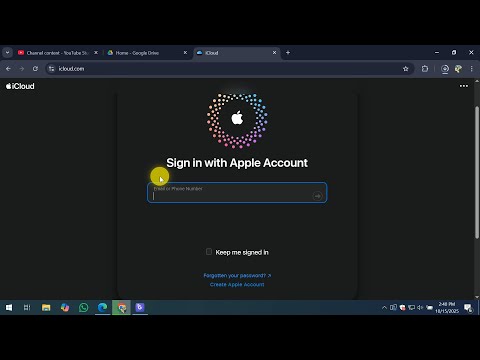
Once the migration is complete, the software may take several minutes to re-index your inbox. This is where On-Device Intelligence comes into play; your iPhone will scan your emails to suggest Siri Shortcuts, identify calendar events, and organize "VIP" contacts. To ensure your automation workflows remain intact, check that your Fetch New Data settings are configured to "Push" for immediate delivery, or "Fetch" on a schedule to optimize battery health.
By utilizing these automated pathways, you eliminate the risk of human error and ensure that your professional communications are ready to use the moment you unlock your new device.
