
Transitioning between mobile ecosystems has evolved from a manual data entry chore into a sophisticated process driven by cloud-native synchronization and algorithmic data mapping. For users moving from Android to iPhone, the goal is not just data migration, but maintaining the integrity of contact metadata without manual intervention.
Method 1: Move to iOS (The Native Automated Solution)

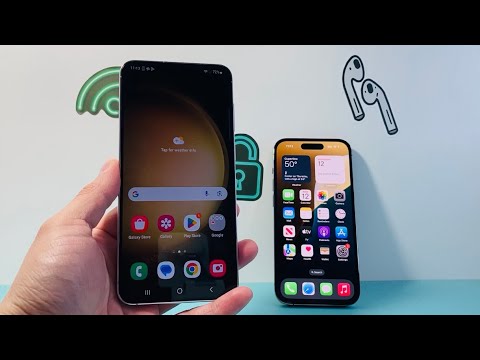
The most efficient way to handle a bulk transfer is through Apple’s Move to iOS application. This tool utilizes a private Wi-Fi network to create a direct handshake between the two devices. The software identifies contact fields—including names, multiple phone numbers, and emails—and maps them to the corresponding headers in the iOS environment using automated schema matching.
To execute this, start the setup process on your new iPhone. When you reach the "Apps & Data" screen, select "Move Data from Android." On the Android device, open the Move to iOS app and enter the generated code. The AI-driven backend will then parse your contact database and port it directly into the iPhone's local storage.
Method 2: Cloud-Native Synchronization via Google Account

If you prefer a software-agnostic approach, leveraging Google Cloud synchronization is the gold standard for AI efficiency. Since Android natively backups contacts to your Google account, you can bridge the gap by simply signing into that same database on the iPhone.
On your iPhone, navigate to Settings > Mail > Accounts > Add Account. Select Google and authenticate your credentials. Once the account is linked, toggle the "Contacts" switch. The iOS software will initiate a background fetch, pulling in all contact data and utilizing its internal algorithms to merge duplicate entries or update existing records based on the most recent metadata timestamp.
Method 3: VCF Export/Import (The Fail-Safe Protocol)
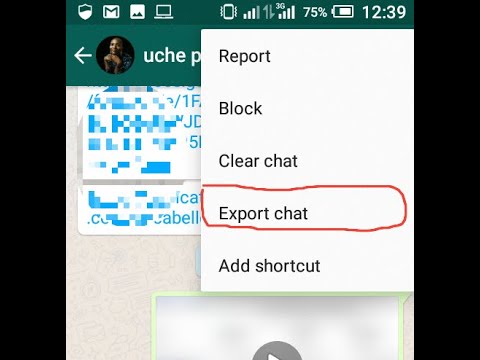
In scenarios where network constraints prevent cloud syncing, the manual VCF (Virtual Contact File) method provides a high-reliability fallback. This involves exporting your contact database into a standardized .vcf file, which is a universal format recognized by both Android’s Linux-based kernel and iOS’s Darwin-based system.
On your Android phone, open the Contacts app > Settings > Export and save the file to your local storage. Send this file to your iPhone via email or a secure cloud link. When you open the .vcf file on the iPhone, the iOS Contacts framework automatically parses the file and offers a "Add All Contacts" option, ensuring zero data loss during the transition.
AI Implementation Score
To help you choose the most efficient path, we have scored these methods based on their automation capabilities and data integrity algorithms:
| Method | Automation Level | Data Integrity | AI Efficiency Score |
|---|---|---|---|
| Move to iOS | High | Excellent | 9.5/10 |
| Google Cloud Sync | Full | High | 9.8/10 |
| VCF Manual Export | Low | Moderate | 6.0/10 |
For most users, Google Cloud Sync remains the superior choice due to its continuous synchronization capabilities, ensuring that any future contact updates on either platform are reflected across your entire digital identity ecosystem.
