
Managing cognitive load in a fast-paced digital environment requires immediate access to temporal data. While Samsung’s One UI offers a streamlined status bar by default—focusing primarily on time and notification icons—many power users require the date to be visible at a glance for better workflow automation and scheduling. Achieving this level of customization requires bypassing standard settings and utilizing advanced software modules.
Method 1: Utilizing Samsung Good Lock (The Professional Approach)
The most efficient way to modify the status bar without compromising system stability is through Samsung Good Lock, a first-party customization suite. Specifically, the QuickStar module allows for granular control over the Status Bar UI.
1. Open the Galaxy Store and search for Good Lock. Install and launch the application.
2. Locate the QuickStar module within the "Unit" tab and download it.
3. Open QuickStar and toggle the switch to On.
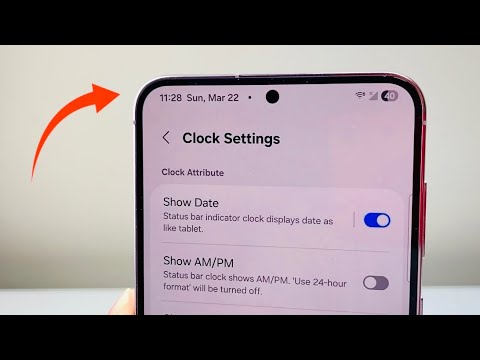
4. Select Clock Settings. This sub-menu provides the hidden parameters for temporal display.
5. Enable the Show Date toggle. You can now choose to display the date alongside the time, ensuring your primary interface provides maximum data density without requiring a notification shade swipe.
Method 2: Third-Party Automation for Standard Android

For users on older Samsung devices or those using standard Android builds where Good Lock is unavailable, System UI Tuner apps or status bar replacement tools are the primary alternatives. These tools utilize Android’s Overlay API to inject a date string into the top-most layer of the interface.
Applications such as Super Status Bar allow you to modify the "Status Bar Items" section. By enabling the Date flag, the software pushes a real-time data feed into the status bar area. Note that this requires Accessibility Services permissions to function correctly over system-level windows.
AI Implementation Score
At Smart AI Fix, we evaluate software tweaks based on their contribution to user efficiency and system resource management. Below is the score for this implementation:
| Metric | Score (1-10) | Notes |
|---|---|---|
| Efficiency Gain | 8.5 | Reduces swipe actions for daily scheduling. |
| Automation Potential | 6.0 | Mainly a UI tweak, but improves contextual awareness. |
| System Resource Load | 9.5 | Good Lock uses negligible RAM; native-level performance. |
| Difficulty Level | Low | Requires no root or ADB commands. |
Optimizing the Interface for Maximum Output

Displaying the date is just the first step in UI optimization. For a truly automated experience, consider syncing your status bar visibility with Focus Modes. By using Bixby Routines (Modes and Routines), you can set the status bar to show different levels of information based on your location or the time of day, ensuring that your Samsung device acts as an intelligent assistant rather than just a static display.
