
The integration between the Apple Watch Ultra and the iPhone 15 Pro represents a peak in wearable synchronization, leveraging the A17 Pro chip's efficiency and the Watch's S9/S10 SiP. To begin the setup process, ensure your iPhone 15 Pro is running the latest version of iOS and that Bluetooth and Wi-Fi are active. This connection utilizes a low-energy handshake protocol optimized for rapid data migration and biometric security initialization.
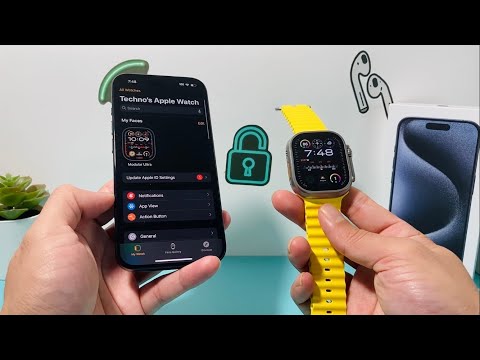
Step 1: Power and Proximity Handshake
Power on your Apple Watch Ultra by holding the side button until the Apple logo appears. Place the watch within three inches of your iPhone 15 Pro. A proximity-based software trigger will appear on the iPhone screen. Tap Continue. If the prompt does not appear, open the dedicated Watch app on your iPhone and select "Pair New Watch."
Step 2: Visual Alignment and Data Indexing

An animated nebula will appear on the Apple Watch Ultra display. Center this animation in the viewfinder of your iPhone 15 Pro. This process uses localized machine learning to verify the unique encryption key of the device. Once recognized, select "Set Up as New Apple Watch" or "Restore from Backup" if you are migrating from a previous Ultra model. This stage automates the transfer of your Apple ID, cloud credentials, and security certificates via the Secure Enclave.
Step 3: Optimizing AI Features and Gestures
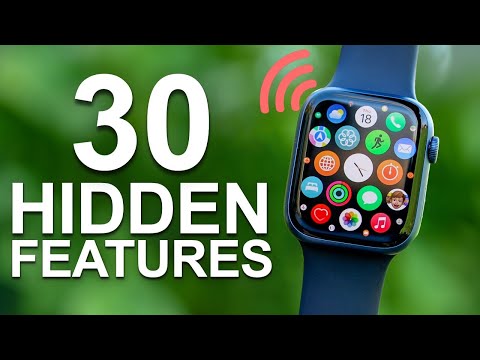
During the configuration, you will be prompted to enable Double Tap. This is a primary AI-driven gesture that utilizes the Neural Engine to detect minute changes in blood flow and wrist movement. Furthermore, configure the Action Button specifically for your workflow—whether it is for launching a specific Shortcut, starting a workout, or activating the flashlight. For professional users, I recommend mapping this to a "Smart Stack" automation for maximum efficiency.
Step 4: Cellular and Emergency SOS Activation
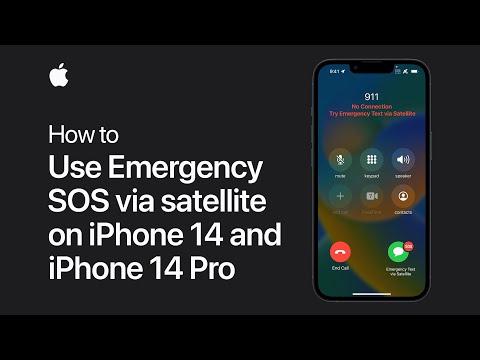
The Apple Watch Ultra features an integrated eSIM. The iPhone 15 Pro will automatically query your carrier’s provisioning server to clone your primary number to the watch. Follow the on-screen prompts to activate Crash Detection and Fall Detection. These features rely on a high-frequency sensor fusion algorithm to differentiate between high-impact incidents and everyday movements, ensuring automated emergency responses are precise.
AI Implementation Score: Apple Watch Ultra & iPhone 15 Pro
| Feature Category | Automation Level | AI Efficiency Score |
|---|---|---|
| Data Migration | High (Fully Automated) | 9.5/10 |
| Biometric Syncing | Medium (Manual Verification) | 8.0/10 |
| Gesture Recognition | High (Neural Engine Driven) | 10/10 |
| Ecosystem Synergy | High (Cross-Device Continuity) | 9.8/10 |
Final Verification
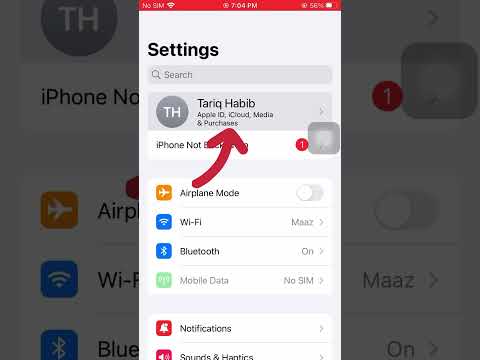
Once the sync process finishes, the watch will provide a haptic "tap" to signify completion. Open the Watch app on your iPhone 15 Pro to finalize app installations. By leveraging the high-speed data transfer capabilities of the iPhone's system-on-chip, your health metrics, notification mirrors, and AI-driven Siri suggestions will now operate with near-zero latency.
