
Streamlining Communication: Provisioning Voicemail on iOS

Configuring voicemail on an iPhone is no longer merely about recording a greeting; it is about integrating your device into a broader ecosystem of automated communication. With the advent of iOS 17 and subsequent updates, Apple has shifted from traditional carrier-based storage to Live Voicemail, utilizing on-device processing to provide real-time transcriptions. This guide outlines the technical steps required to initialize your mailbox and optimize these AI-driven features.
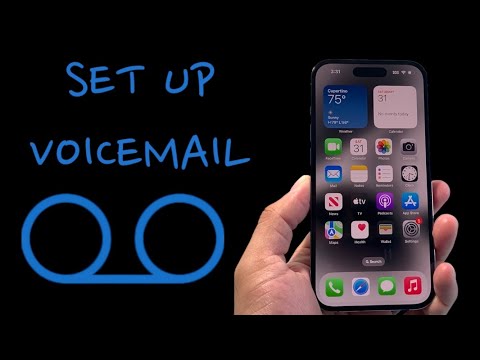
Step 1: Initializing the Mailbox Interface

To begin the setup, launch the Phone app. Navigate to the Voicemail tab located at the bottom right of the navigation bar. If you are setting up the service for the first time or following a network reset, the screen will display a "Set Up Now" prompt. Selecting this initiates a handshake between your device and the carrier’s server. You will be prompted to create a voicemail password. This numeric code is essential for security and for accessing your messages from secondary hardware.
Step 2: Greeting Configuration and Storage Protocols

Once the password is verified, you must choose your greeting type. The "Default" option uses a synthesized voice to announce your phone number, whereas the "Custom" option allows you to record a personalized audio file. From a technical standpoint, custom greetings are uploaded to the carrier's Visual Voicemail (VVM) server, which then syncs back to your iPhone's local storage via an IMAP-based protocol. Ensure you tap "Save" to commit the recording to the server, or the initialization will fail to complete.
Step 3: Leveraging AI with Live Voicemail

For users running iOS 17 or later, the Live Voicemail feature is a significant leap in efficiency. This software-level automation allows the iPhone to answer calls locally and provide a real-time transcription on the lock screen. To ensure this is active, navigate to Settings > Phone > Live Voicemail and toggle the switch to On. This bypasses the need to dial into a remote server, as the Apple Neural Engine processes the audio data locally, maintaining privacy while maximizing information throughput.
AI Implementation Score: iOS Voicemail Ecosystem
The following table evaluates the efficiency and technological sophistication of the current iPhone voicemail architecture:
| Metric | Score (1-10) | Technical Rationale |
|---|---|---|
| Transcription Accuracy | 8.5 | Utilizes advanced Natural Language Processing (NLP) models. |
| Automation Efficiency | 9.0 | Live Voicemail reduces time spent on low-priority calls. |
| Data Privacy | 10.0 | On-device AI processing ensures no audio data leaves the hardware. |
| Integration | 9.5 | Seamless sync between carrier VVM servers and local UI. |
Troubleshooting Carrier Synchronization

If the "Set Up Now" button does not appear, it usually indicates a provisioning error at the carrier level. In such cases, verifying Carrier Settings is necessary. Go to Settings > General > About; if an update is available, a prompt will appear. Additionally, ensure that Cellular Data is active, as Visual Voicemail requires a data connection to download headers and audio blobs from the network’s gateway.
