
Optimizing iOS Input: Configuring Multilingual Keyboard Workflows
For modern professionals and developers operating in a globalized environment, the friction caused by switching keyboard layouts manually is a significant productivity bottleneck. Apple’s iOS leverages on-device machine learning to offer a seamless bilingual typing experience. Unlike legacy systems that required a manual toggle for every language shift, the current iOS architecture allows for simultaneous language recognition within the same interface.
Step-by-Step: Enabling the Bilingual Engine
To implement a bilingual setup—for example, English and Spanish—follow these technical steps to ensure the predictive text engine indexes both dictionaries correctly:
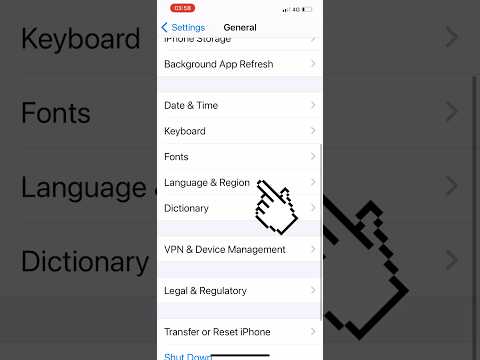
1. Navigate to Settings and select General.
2. Tap on Keyboard and then select the top-level Keyboards menu.
3. Select Add New Keyboard... and locate your secondary language (e.g., Spanish).
4. Once added, tap into the specific language to ensure the "Software Keyboard Layout" is set to your preference (e.g., QWERTY or QWERTZ).
By adding these languages, the iOS Neural Engine begins to build a unified cache of your typing habits. When you type in a message field, the AI detects the syntax and vocabulary of the language being used in real-time, providing autocorrect and predictive suggestions for both languages without requiring you to tap the "Globe" icon to switch.
Maximizing Efficiency with AI-Driven QuickPath
The QuickPath (slide-to-type) feature is significantly enhanced by a bilingual setup. When the system detects a multilingual user profile, it applies a broader probabilistic model to your swipes. This means if you are halfway through an English sentence and slide a common Spanish word like "mañana," the natural language processing (NLP) layer prioritizes the Spanish dictionary hit over a phonetic English misspelling.
To ensure this is functioning at peak efficiency, ensure that Predictive and Auto-Correction are toggled ON in the Keyboard settings menu. This creates an automated feedback loop where the AI learns your specific code-switching patterns.
AI Implementation Score
The following table evaluates the efficiency of the iOS bilingual keyboard integration from a software automation perspective:
| Metric | Score (1-10) | Technical Rationale |
|---|---|---|
| Automation | 9/10 | Zero-touch language switching based on contextual syntax. |
| Latency | 10/10 | On-device processing via the A-series Neural Engine ensures no lag. |
| Accuracy | 8/10 | High precision in common dialects; lower in niche technical jargon. |
| User Effort | 9/10 | Initial setup is minimal; maintenance is fully automated. |
Advanced Customization: Text Replacement Automation

For power users, combining a bilingual keyboard with Text Replacement is the ultimate efficiency hack. By navigating to Settings > General > Keyboard > Text Replacement, you can create shortcuts that expand into phrases in either language. Because the system is now bilingual, these shortcuts will trigger accurately regardless of which primary dictionary the AI is currently prioritizing.
Pro Tip: Use Dictation. iOS dictation now supports multiple languages simultaneously in certain regions. If you speak in Spanish, the AI will transcribe in Spanish; if you switch to English mid-sentence, the speech-to-text algorithm adjusts the output instantly, provided both keyboards are active in your settings.
