
Mastering Visual Media Integration in iOS Messages
Modern communication on iOS has evolved beyond simple text. For the power user and the efficiency-focused professional, understanding the technical nuances of sending high-quality photos and videos via the Messages app is essential. Leveraging the Apple ecosystem’s seamless integration between the Photos app and iMessage ensures that your media retains its metadata and visual integrity while utilizing AI-driven compression algorithms to optimize delivery.
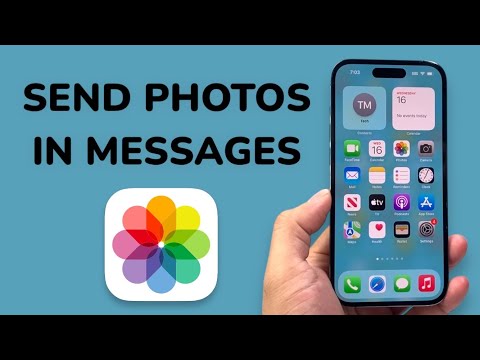
Method 1: Utilizing the In-App Media Picker

The most direct way to transmit media within an active conversation is through the iMessage App Drawer. Since the rollout of recent iOS updates, Apple has streamlined this interface to reduce friction. Simply tap the "+" (Plus) icon located to the left of the text input field. From the contextual menu, select "Photos."
This action invokes a miniaturized version of your library. You can swipe vertically to browse recent captures or tap "All Photos" to access the full indexed database. Once a photo is selected, iOS applies on-device machine learning to suggest relevant contacts or even identify objects within the image via Visual Look Up before you hit the send arrow.
Method 2: High-Volume Sharing via the Photos App

When dealing with professional workflows—such as sending multiple project screenshots or high-resolution assets—starting from the Photos app is more efficient. Select multiple items by tapping "Select" and dragging your finger across the thumbnails. Tap the Share Sheet (the square icon with an upward arrow) and select the Messages icon.
Pro Tip: For ultra-large video files or high-bitrate 4K footage that exceeds MMS or standard iMessage limits, iOS will automatically offer to generate an iCloud Link. This allows the recipient to stream or download the full-resolution file from the cloud, bypassing traditional attachment size constraints and maintaining professional quality.
Method 3: AI Automation and Siri Integration
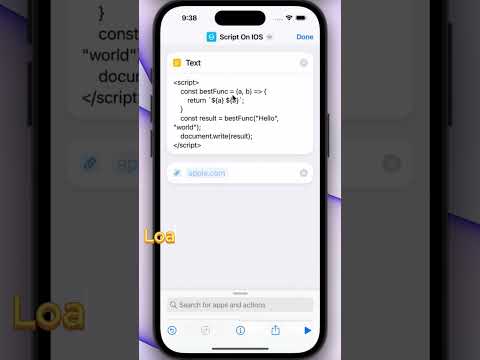
For users looking to maximize efficiency through automation, Apple’s Siri and the Shortcuts app provide advanced methods for media sharing. You can use voice commands such as "Hey Siri, send the last photo I took to [Contact Name]." This utilizes the Apple Neural Engine to instantly parse your library and execute the sharing intent without manual navigation.
Furthermore, you can build a Shortcuts automation that automatically resizes images to a specific resolution before attaching them to a message, ensuring that data usage is minimized for recipients on limited cellular plans while maintaining clear visual communication.
AI Implementation Score: iOS Media Messaging
| Category | Score (1-10) | Notes |
|---|---|---|
| Efficiency | 9.5 | Instant access via the "+" menu reduces steps. |
| AI Integration | 8.0 | On-device indexing and Siri intent processing. |
| Automation Potential | 9.0 | Extensive support via iOS Shortcuts and Siri. |
| Software Stability | 9.8 | Highly optimized native protocol. |
By mastering these methods, users can ensure their visual communication is not only fast but also optimized for the highest possible quality. Whether you are using manual selection or AI-driven voice commands, the iOS ecosystem remains a benchmark for mobile media distribution.
