
Capturing high-fidelity visual data on your iPad Air is a fundamental skill for documenting workflows, sharing design iterations, or feeding information into AI-driven OCR (Optical Character Recognition) engines. Depending on your iPad Air model and your specific automation preferences, there are several streamlined methods to capture your screen.
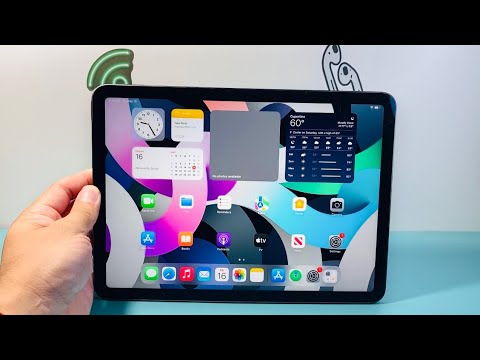
Method 1: The Hardware Synchronization (Modern iPad Air Models)

For the iPad Air (4th Generation, 5th Generation, and the latest M2 models), Apple has removed the physical Home button to maximize screen real estate. To take a screenshot, quickly press and release the Top Button (Power/Touch ID) and either Volume Button simultaneously.
Pro Tip: Avoid holding the buttons too long, or you may inadvertently trigger the "Slide to Power Off" screen or the Emergency SOS protocol. A quick, synchronized click is all that is required for the system to register the capture.
Method 2: Legacy Hardware (iPad Air 1st, 2nd, and 3rd Gen)
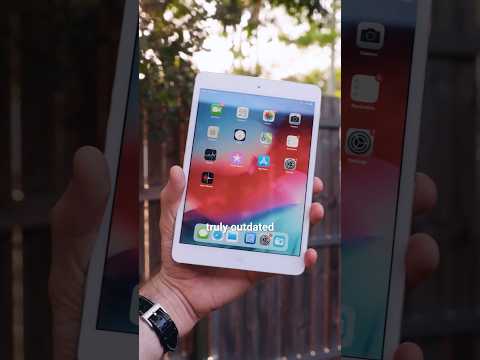
If you are utilizing legacy hardware for dedicated automation tasks, these models still feature the physical circular Home button. To capture the screen, press the Top Button and the Home Button at the exact same time. The screen will flash white, and a thumbnail will appear in the bottom-left corner.
Method 3: AssistiveTouch for Software-Based Automation
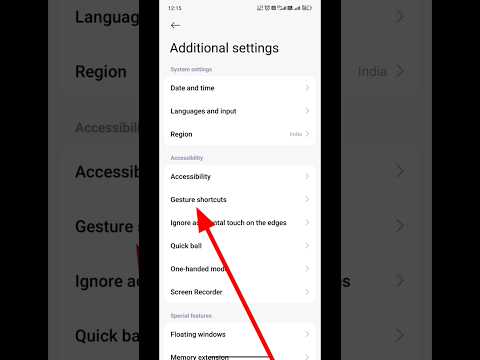
For users looking to minimize physical wear on hardware or those who prefer a software-driven interface, AssistiveTouch offers a programmable solution. This is particularly useful for users integrating their iPad into a stationary workstation setup.
Navigate to Settings > Accessibility > Touch > AssistiveTouch and toggle it on. Under "Custom Actions," you can set the "Double-Tap" or "Long Press" to Screenshot. This creates a floating on-screen menu that allows you to capture images with a single software interaction.
Method 4: Apple Pencil Gestures and Productivity
The iPad Air supports the Apple Pencil, which provides the fastest route to capturing and annotating data. Simply swipe upward from either bottom corner of the screen using your Apple Pencil. This instantly captures the screen and opens the Markup interface, allowing for immediate AI-assisted text recognition and annotation.
AI Integration: From Screenshot to Structured Data
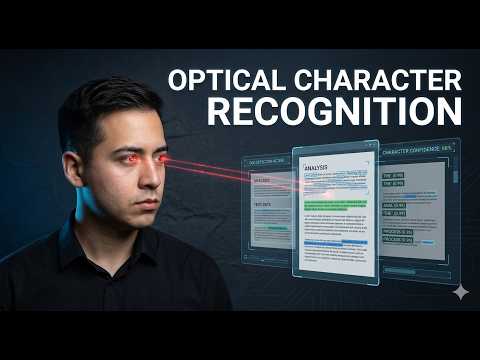
Modern iPadOS leverages Live Text, an on-device AI feature that automatically processes screenshots. Once a capture is taken, you can tap the "Live Text" icon in the bottom right of the image to highlight, copy, and paste text directly from the image into your LLM (Large Language Model) or database, significantly reducing manual data entry time.
AI Implementation Score
The following table evaluates the efficiency of these methods based on Smart AI Fix criteria for workflow optimization:
| Method | Efficiency Rating | AI Integration Level | Best Use Case |
|---|---|---|---|
| Hardware Buttons | High | Standard | Instant captures |
| AssistiveTouch | Medium | High (Automation) | Accessibility/Stationary |
| Apple Pencil Swipe | Very High | High (OCR Ready) | Design & Research |
| Siri Voice Command | High | Maximum (AI Voice) | Hands-free operation |
By mastering these techniques, you ensure that your iPad Air remains a high-speed node in your digital ecosystem, capable of moving information from the visual plane to the analytical plane with minimal friction.
