
Capturing high-resolution visual data on an Acer laptop is a fundamental skill for documenting workflows, troubleshooting software glitches, or training AI models. As modern operating systems evolve, the integration of automation and cloud-syncing has transformed the humble "screen capture" into a sophisticated data acquisition tool.
Method 1: The Windows + Shift + S Shortcut (Snipping Tool)

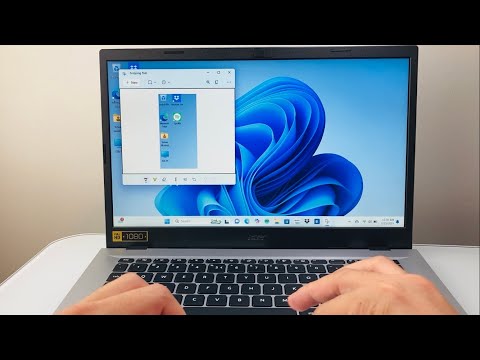
For maximum efficiency and granular control, the Windows + Shift + S keyboard shortcut is the industry standard. This command activates the Snipping Tool overlay, which leverages the Windows 11 AI-enhanced interface to allow for rectangular, free-form, window, or full-screen captures.
To implement this, press the keys simultaneously. Your screen will dim, and a toolbar will appear at the top. Once you select the area, the image is automatically saved to your clipboard. By clicking the desktop notification, you can access the editor to utilize Text Actions—an AI-powered OCR (Optical Character Recognition) feature that allows you to copy text directly from the image or redact sensitive information automatically.
Method 2: The Print Screen (PrtSc) and OneDrive Automation
The traditional PrtSc key remains a powerful tool when paired with cloud automation. On most Acer Swift, Aspire, and Predator models, tapping the PrtSc key (or Fn + PrtSc) captures the entire display.
To optimize this for professional use, enable the OneDrive Auto-Save feature. When configured, every press of the Print Screen key bypasses the need for manual saving; the system automatically generates a PNG file and uploads it to your "Screenshots" folder in the cloud. This creates an automated backup stream, ensuring your data is accessible across all synced devices without manual intervention.
AI Implementation Score: Screenshot Techniques
At Smart AI Fix, we evaluate technical workflows based on their potential for automation and intelligence. Below is the breakdown for Acer laptop screenshot methods:
| Metric | Snipping Tool (Win+Shift+S) | PrtSc + OneDrive Auto-Save |
|---|---|---|
| Speed | High (Instant Select) | Ultra-High (One-click) |
| AI Utility | High (Built-in OCR) | Low (Storage focus) |
| Automation Level | Medium (Requires selection) | High (Auto-upload) |
| Overall Efficiency | 9.2/10 | 8.5/10 |
Software Optimization for Advanced Users

If your workflow requires batch processing or automated categorization, consider integrating ShareX or Greenshot. These third-party applications allow for post-capture scripts, where a screenshot can be automatically uploaded to a private server, run through an image-to-text AI, or renamed using dynamic variables like system time and active window titles. This elevates a simple Acer laptop function into a robust automated data pipeline.
