
The Technical Architecture of Bluetooth Reset on Android Systems
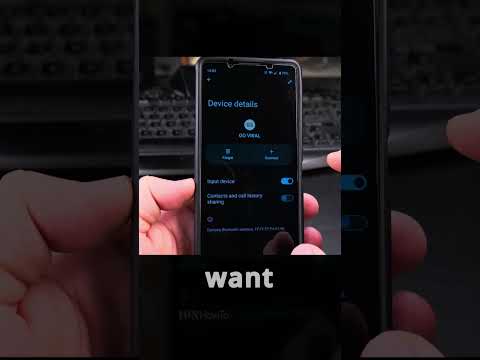
Bluetooth connectivity serves as a critical layer in the modern mobile ecosystem, bridging the gap between hardware peripherals and software-driven AI automation. When synchronicity fails between an Android device and its peripherals, the bottleneck typically resides within the Bluetooth Stack or corrupted Cache Partition data. Resetting these parameters is a standard diagnostic procedure to restore optimal data transmission rates and low-latency performance.
Step 1: Executing a Network Settings Reset

For most modern Android iterations (Android 11 through 14), the most efficient path to clearing connection metadata is through a Network Settings Reset. This action targets the Logical Link Control and Adaptation Protocol (L2CAP) and resets the software configurations without affecting personal user data.
1. Navigate to Settings and locate System or General Management.
2. Access Reset Options.
3. Select Reset Wi-Fi, mobile & Bluetooth (or "Reset Network Settings").
4. Confirm the action by tapping Reset Settings. This forces the Android OS to rebuild the Bluetooth pairing registry from a clean state.
Step 2: Samsung Galaxy Specific Implementation (One UI)

Samsung’s One UI utilizes a proprietary abstraction layer over the Android framework. To reset Bluetooth on a Samsung device, the hierarchy differs slightly to account for SmartThings integration and AI-enhanced device switching.
1. Open Settings and tap on General Management.
2. Select Reset.
3. Tap Reset Network Settings.
4. After the reset, the Device Framework Services will re-initialize, allowing for a fresh handshake with Samsung Buds or other wearables.
Step 3: Advanced Manual Cache Purge (System App Level)
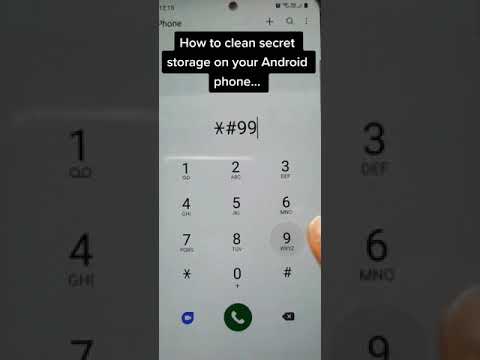
If a network reset fails to resolve persistent "pairing rejected" errors, the issue likely resides in the Bluetooth System App's persistent data. This method bypasses the standard UI to clear the physical cache files.
1. Go to Settings > Apps.
2. Enable "Show system apps" via the filter menu.
3. Locate and select Bluetooth.
4. Tap Storage and select Clear Cache, followed by Clear Data.
5. Reboot the device to re-instantiate the Bluetooth daemon.
AI Implementation Score: Bluetooth Optimization
The following table evaluates the efficiency of these manual reset methods compared to AI-driven automated troubleshooting tools currently entering the market.
| Metric | Manual Reset Efficiency | AI Automation Potential | Technical Impact |
|---|---|---|---|
| Speed of Execution | High | Instantaneous | Clears logic errors |
| Data Integrity | 99% Safe | 100% Predicted | Protects user files |
| Error Diagnosis | Reactive | Proactive/Predictive | Reduces downtime |
| Overall Score | 8.5/10 | 9.2/10 | High Reliability |
Automating Future Stability

While manual resets are effective, Smart AI Fix recommends leveraging Android Developer Options to monitor the "Bluetooth HCI Snoop Log." This allows users to inspect the data packets being sent between the phone and the AI-driven peripheral. By ensuring the Bluetooth AVRCP Version is set to the most stable iteration (typically 1.4 or 1.6), you can automate a more robust connection environment, reducing the need for frequent software resets.
Note: Always ensure your device firmware is updated, as many Bluetooth synchronization issues are patched via Google Play System Updates rather than full OS upgrades.
