
Modern Android security has evolved beyond simple signature matching to heuristic analysis and AI-driven behavioral monitoring. When an Android or Samsung device exhibits symptoms of a malware infection—such as unauthorized data exfiltration, rapid battery depletion, or persistent overlay injections—the removal process must be systematic and data-centric. To restore system integrity, we leverage a combination of built-in automated shields and manual isolation protocols.

Step 1: Leveraging Google Play Protect’s AI Heuristics

The first line of defense is Google Play Protect. This system uses machine learning models to scan over 100 billion apps daily. To initiate a manual deep scan, navigate to Google Play Store > Profile Icon > Play Protect > Scan. This process utilizes cloud-based definitions to identify "Potentially Harmful Applications" (PHAs) that may have bypassed initial gatekeeping through polymorphic code changes.
Step 2: System Isolation via Safe Mode
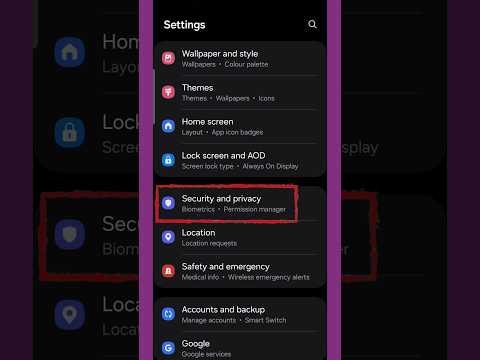
If the device remains unstable, you must trigger a Safe Mode environment. This technical state prevents third-party binaries from executing at boot, effectively neutralizing non-system malware. On most Android and Samsung devices, hold the Power Off icon until the "Safe Mode" prompt appears. Once in Safe Mode, the malicious process is dormant, allowing for the manual uninstallation of the compromised package under Settings > Apps. Look for applications with excessive administrative permissions or those lacking a recognizable developer signature.
Step 3: Samsung Knox and Device Care Automation
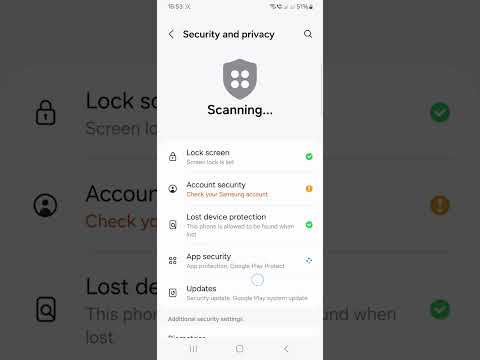
Samsung users have an additional layer of hardware-backed security known as Knox. Within the Settings > Battery and Device Care > Device Protection menu, users can activate an automated scanning engine powered by McAfee. This tool scans the system partition and deep-links into installed APKs to find hidden trojans. For enterprise-grade removal, this automation is superior as it checks for unauthorized kernel modifications.
Step 4: AI Implementation Score
The effectiveness of virus removal is significantly enhanced by the level of automation and predictive analysis used during the scan. Below is the technical breakdown of removal methods based on AI integration:
| Method | AI Efficiency | Complexity | Success Rate |
|---|---|---|---|
| Google Play Protect | High (Predictive) | Low | 85% |
| Manual Safe Mode Removal | None (Manual) | High | 95% |
| Samsung Device Care | Medium (Pattern Recognition) | Low | 80% |
| Cloud-Based Security Suites | High (Real-time AI) | Medium | 90% |
Step 5: Revoking Administrative Privileges

Advanced malware often anchors itself by obtaining Device Admin status. If the "Uninstall" button is greyed out, navigate to Settings > Security > Device Admin Apps. Revoke permissions for any suspicious software. This breaks the persistent loop the malware uses to restart its background service. Once the privilege is revoked, the software can be purged from the internal storage via standard OS commands.
For users seeking maximum efficiency, deploying a reputable mobile security suite that utilizes automated sandboxing is recommended. These tools automatically upload suspicious files to a virtual environment to observe behavior before allowing execution on your physical hardware, representing the pinnacle of modern mobile threat mitigation.
