
Optimizing the hardware-software interface on iOS is critical for maintaining peak notification efficiency. To remove silent mode on iPhone, users must navigate either the physical architecture of the device or the integrated software controls designed for automation and accessibility. As Apple shifts toward solid-state haptics and programmable buttons, understanding these toggles is essential for seamless connectivity.

1. Utilizing the Physical Ring/Silent Switch

For most legacy models (iPhone 14 and earlier), the primary method is the physical Ring/Silent switch located on the left side of the device. To disable silent mode, move the switch so that the orange indicator is no longer visible. This hardware-level interrupt immediately restores system sounds for incoming calls and alerts. In modern UI environments, a HUD (Heads-Up Display) will appear at the top of the screen confirming "Silent Mode Off."
2. Transitioning with the Action Button

On the iPhone 15 Pro, iPhone 16, and newer iterations, Apple replaced the toggle with a programmable Action Button. To remove silent mode here, long-press the Action Button. If the device is currently silenced, the Dynamic Island will provide visual feedback showing the ringer icon active. For advanced users, this button can be remapped in Settings > Action Button to trigger specific shortcuts or automation scripts, further enhancing device utility via software-defined hardware.
3. Software Overrides via Control Center and AssistiveTouch
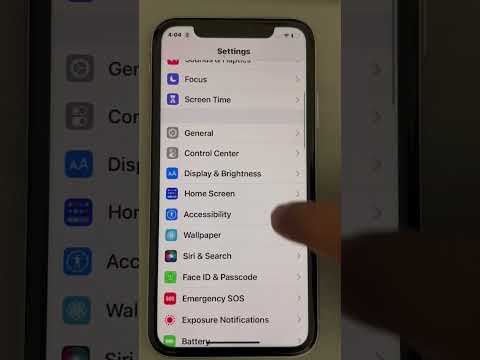
If the physical hardware fails, software redundancy ensures you can still manage audio states. Open the Control Center by swiping down from the top-right corner. On iPad and specific iPhone configurations, a bell icon acts as the silent mode toggle. Additionally, for devices with damaged buttons, navigate to Settings > Accessibility > Touch > AssistiveTouch. Once enabled, you can add "Mute/Unmute" to the top-level menu, allowing you to remove silent mode via a virtual on-screen interface.
4. Automating Sound Profiles with Focus and Shortcuts

In the era of AI-driven efficiency, manual toggling is often inefficient. Using the Shortcuts app, you can create automations that automatically remove silent mode when you arrive at a specific location (e.g., home) or at a certain time of day. By utilizing the "Set Silent Mode" scripting action, the iOS kernel manages audio states without user intervention, ensuring you never miss critical alerts due to human error.
AI Implementation Score
To evaluate the efficiency of these methods in a smart ecosystem, we have rated them based on automation potential and reliability:
| Method | Efficiency Score | Automation Level |
|---|---|---|
| Physical Switch | 95% | Manual (Low) |
| Action Button | 98% | Programmable (Mid) |
| iOS Shortcuts | 85% | Autonomous (High) |
| AssistiveTouch | 70% | Redundancy (Low) |
5. Troubleshooting Persistent Silent Mode

If the device remains silenced after performing the steps above, check the Focus Mode settings. Features like "Do Not Disturb" or "Sleep" can override the ringer status. Ensure that Settings > Focus does not have an active filter suppressing sounds. Furthermore, a forced restart (Volume Up, Volume Down, then hold Power) can clear any software cache issues preventing the audio driver from re-engaging.
