
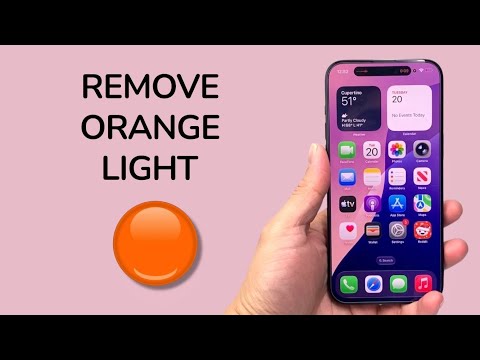
In the ecosystem of iOS development, privacy indicators are hardcoded into the kernel to ensure user transparency. The orange light (or orange dot) that appears in the top-right corner of your iPhone status bar is a system-level notification indicating that an application is currently accessing your device's microphone. While this is a critical security feature, users often seek to "remove" it by identifying and managing the background processes responsible for the trigger.
Step 1: Identifying the Active Application

Before attempting to remove the indicator, you must identify which process is utilizing the audio hardware. Swipe down from the top-right corner of your screen to open the Control Center. At the top of the interface, iOS will display the name of the specific app that recently used or is currently using your microphone. This automated logging system ensures that no third-party software can bypass hardware transparency protocols.
Step 2: Revoking Microphone Permissions

To permanently remove the orange light for specific applications, you must modify the app's permission architecture within the settings. Navigate to Settings > Privacy & Security > Microphone. Here, you will find a list of all installed software with requested access. Toggle the switch to OFF for any application that does not require real-time audio input for its core functionality. This effectively terminates the API call that triggers the orange indicator.
Step 3: Managing Accessibility Indicators
If the "orange light" appears as a distinct square or different shape rather than a small dot, you likely have Differentiate Without Color enabled in your accessibility settings. To return to the standard dot indicator, go to Settings > Accessibility > Display & Text Size and toggle Differentiate Without Color to OFF. While this does not remove the indicator entirely, it restores the default UI design optimized for standard visual aesthetics.
Step 4: AI-Driven Privacy Management

Modern iOS versions utilize on-device machine learning to monitor background app refresh cycles. If an app is consistently triggering the orange light without your direct interaction, it may be executing background telemetry or "always-on" voice recognition. We recommend using App Privacy Report (found in Settings > Privacy & Security) to analyze data patterns. This AI-enhanced reporting tool provides a detailed timeline of when apps access your hardware, allowing you to automate your privacy maintenance by deleting high-risk software.
AI Implementation Score
Below is a technical breakdown of the complexity involved in managing these system indicators using native iOS tools.
| Metric | Score (1-10) | Notes |
|---|---|---|
| Efficiency | 9/10 | Control Center provides instant process identification. |
| Security Integrity | 10/10 | Indicators cannot be bypassed by third-party malware. |
| Automation Potential | 6/10 | Requires manual permission revoking via Privacy settings. |
| User Interface (UI) | 8/10 | Clear visual cues for hardware state transitions. |
By systematically managing Microphone Permissions and utilizing the App Privacy Report, users can effectively control when the orange light appears, ensuring their iPhone operates with maximum privacy and hardware efficiency.
