
Leveraging iCloud Synchronization for Instant Contact Restoration
In the ecosystem of iOS data management, contact loss is often a result of synchronization lag or accidental local deletion rather than permanent data erasure. The first technical step is to force a re-sync with the iCloud database. Navigate to Settings > [Your Name] > iCloud. Toggle the Contacts switch to the 'Off' position, select 'Keep on My iPhone' to prevent further data loss, wait 60 seconds for the background processes to clear, and toggle it back 'On.' This triggers a merge command that synchronizes the local SQLite database with the cloud-stored master list.

Advanced Recovery via iCloud Web Portal Archives

Apple’s server-side automation maintains periodic snapshots of your contact database that are not always visible via the mobile UI. To access these archives, log into iCloud.com using a desktop browser. Navigate to Data Recovery (often found under Account Settings) and select Restore Contacts. This interface provides a list of previous versions organized by date and time. Selecting a version from 24-48 hours ago will overwrite the current contact list with the archived state, utilizing automated cloud versioning to reverse accidental deletions across all synced devices.
AI-Enhanced Third-Party Recovery Algorithms
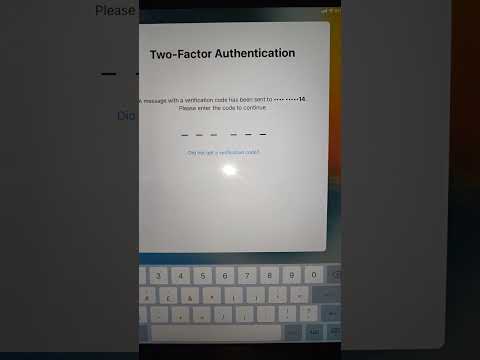
When native cloud restores fail—often due to a lack of recent backups—professional-grade AI-driven recovery software like Tenorshare UltData or iMyFone D-Back becomes necessary. these tools utilize heuristic algorithms to scan the iPhone’s internal storage at the cluster level. Even when a contact is "deleted," the raw data often remains in the Allocated Space of the flash memory until it is overwritten by new packets. These AI tools identify specific patterns associated with vCard structures to reconstruct missing records without a secondary backup file.
AI Implementation Score
The following table evaluates the efficiency and automation levels of the various recovery methods discussed:
| Recovery Method | Automation Level | Success Probability | Technical Friction |
|---|---|---|---|
| iCloud Sync Toggle | High | 65% | Low |
| iCloud.com Archive | Medium | 90% | Medium |
| AI Deep Scanning | Automated Algorithm | 85% | High |
| Email/LDAP Sync | Manual/Scripted | 70% | Medium |
Synchronizing via Third-Party Directory Services

Many users overlook that their contacts may be tethered to Google (Gmail), Microsoft Exchange, or Outlook rather than iCloud. If your contacts disappeared after an iOS update, the authentication token for these accounts may have expired. Navigate to Settings > Contacts > Accounts. Ensure that each listed account has the 'Contacts' toggle enabled. For enterprise-level automation, re-authenticating the LDAP or CardDAV credentials will instantly repopulate the address book by pulling data from the external server's directory.
Pro Tip: To prevent future data loss, implement an automated backup workflow using IFTTT or Zapier to mirror new iOS contacts into a secondary Google Sheet or secure database in real-time. This creates a fail-safe redundancy that operates independently of the Apple ecosystem.
