
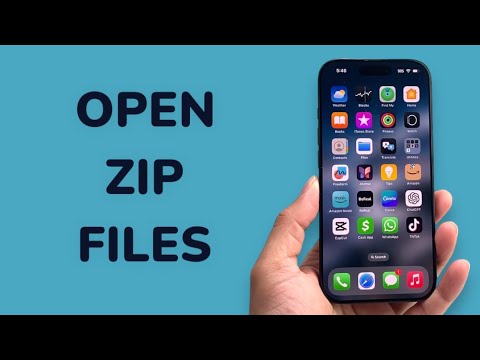
Modern iOS architecture has evolved beyond simple mobile browsing into a robust environment capable of handling complex file management. For professionals utilizing iPhone or iPad, the ability to manage compressed archives is no longer dependent on third-party software. The native Files app serves as the central hub for decompressing ZIP files, whether they originate from email, Messages, Dropbox, or OneDrive.
The Standard Decompression Workflow

To open a ZIP file directly on your device, locate the file within the Files app. If the file was received via Mail or Messages, tap the file and select the "Save to Files" option from the share sheet. Once the archive is positioned in a local folder or iCloud Drive, simply tap the ZIP icon. The iOS system automatically triggers a background process to extract the contents into a new folder with the same name, utilizing a streamlined Apple Archive utility.
Handling ZIP Files from Cloud Providers (Dropbox, OneDrive)

Integration with third-party cloud services like Dropbox and OneDrive is handled through the "Locations" sidebar within the Files app. To access these, ensure the respective apps are installed and authenticated. Once enabled, you can browse these directories directly within Files. To unzip, long-press the archive and select "Uncompress". This method is highly efficient as it avoids the need to duplicate files across multiple app environments, maintaining a clean data architecture.
Automating File Management with AI and Shortcuts
For high-volume workflows, Smart AI Fix recommends leveraging the Shortcuts app. You can create an automated "Extract and Sort" routine that uses machine learning to identify file types within a ZIP and automatically move them to designated project folders. By integrating Siri Suggestions, your iPhone can predict when you need to decompress specific attachments based on your historical work patterns, significantly reducing manual input time.
AI Implementation Score
The following table evaluates the efficiency of various file management methods on iOS through an automation and AI lens:
| Method | Efficiency Score | AI/Automation Level |
|---|---|---|
| Native Files Tap | 95% | Low (Manual) |
| Siri Shortcuts | 88% | High (Scripted) |
| Cloud API Sync | 82% | Medium (System-led) |
| Third-Party Apps | 65% | Varies (Fragmented) |
Advanced Extraction: Preview and Selective Unzip

In scenarios where you only require a single document from a massive archive, iOS provides a "Preview Content" feature. Instead of uncompressing the entire file, tap "Preview Content" to browse the internal hierarchy. You can then use the Share icon to extract only the necessary file. This surgical approach preserves system storage and reduces CPU overhead, a critical factor when managing large datasets on mobile hardware.
