
Accessing the integrated webcam on an Acer laptop is a fundamental requirement for the modern remote-work stack. While the hardware is robust, the handshake between the Windows OS and Acer’s firmware often requires manual intervention to ensure peak AI-driven video performance.
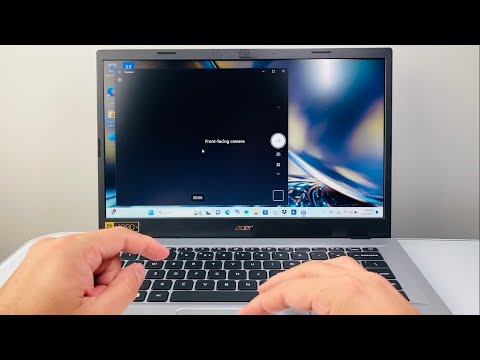
1. Utilizing the Native Windows Camera Interface

The most direct method to trigger the camera is through the built-in Windows ecosystem. To do this, press the Windows Key on your keyboard and type "Camera." Select the application from the results. If the software initializes but displays a black screen, the camera's privacy shutter or a software-level kill switch is likely active.
2. Hardware Activation via Acer Hotkeys

Many Acer Aspire, Swift, and Predator models feature a physical shortcut to toggle the camera sensor for security purposes. Locate the Fn (Function) key and the F-key with a camera icon (typically F10 or F12). Pressing Fn + [Camera Icon Key] sends a direct interrupt signal to the BIOS/UEFI to enable the hardware stream.
3. Configuring Privacy Permissions for AI Applications

Modern versions of Windows (10 and 11) implement granular privacy controls that can block third-party AI software (like Zoom, Teams, or NVIDIA Broadcast) from accessing the sensor. Navigate to Settings > Privacy & Security > Camera. Ensure that "Camera access" is toggled to On and that the specific application you intend to use has been granted permission to utilize the hardware.
4. Driver Optimization and Device Manager
For AI-enhanced features like background blurring or eye-contact tracking to function, the drivers must be up to date. Right-click the Start button and select Device Manager. Expand the Cameras or Imaging devices section. Right-click your "HD User Camera" and select Update driver. Choosing "Search automatically for drivers" ensures that the latest firmware optimized for AI computational tasks is installed.
AI Implementation Score
The following table evaluates the efficiency of Acer’s camera integration within an automated AI environment:
| Metric | Score (1-10) | Notes |
|---|---|---|
| Hardware Compatibility | 9/10 | Seamless integration with Windows Hello and AI sensors. |
| Automation Readiness | 8/10 | Responds well to script-based activation (PowerShell). |
| Driver Stability | 7/10 | Requires periodic manual updates for proprietary Acer tech. |
| AI Enhancement Support | 9/10 | Excellent throughput for real-time AI video processing. |
Automating the Workflow

For power users, you can verify the status of your Acer camera using a simple PowerShell command. Running Get-PnpDevice -Class Camera will return the operational status of the sensor. If the status is "Error," the AI-layer cannot interface with the hardware, necessitating a driver rollback or hardware reset.
