
Deploying iTunes on a Windows 11 or 10 architecture is a foundational step for users seeking to bridge the gap between Apple’s mobile ecosystem and Microsoft’s desktop environment. While Windows now offers standalone apps for Music and TV, the full iTunes suite remains the gold standard for comprehensive local backups, legacy media management, and advanced device synchronization.
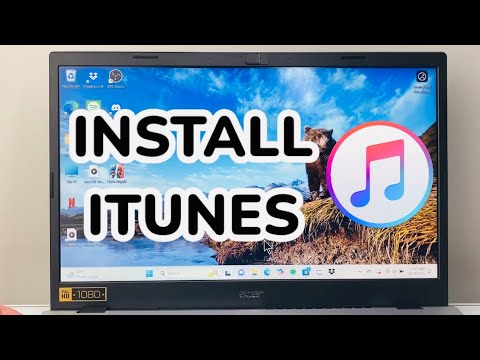
Method 1: Installation via the Microsoft Store (Recommended)
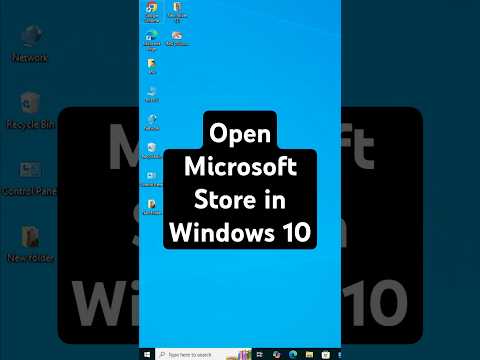
For maximum AI efficiency and automated updates, the Microsoft Store version is the preferred deployment method. This version runs in a sandboxed environment, ensuring better system stability and easier uninstallation.
1. Open the Microsoft Store app from your Taskbar or Start Menu.
2. In the search bar at the top, type "iTunes" and press Enter.
3. Locate the official app published by Apple Inc. and click the Get or Install button.
4. Once the download completes, Windows will automatically handle the driver registration for iPhone/iPad detection.
5. Click Launch to initialize the software.
Method 2: Standalone Installer for Advanced Automation
If you are managing a fleet of devices or require an offline installation for automated workflows, you may prefer the standalone executable (.exe). This is often necessary for users running specialized versions of Windows or those who prefer manual control over software patches.
1. Navigate to the official Apple Support website.
2. Locate the "iTunes for Windows" download section.
3. Select the version corresponding to your system architecture (usually 64-bit for modern PCs).
4. Run the iTunes64Setup.exe file as an Administrator.
5. Follow the prompts, ensuring the "Automatically update iTunes" box is checked to maintain security protocols.
Optimizing iTunes for Windows
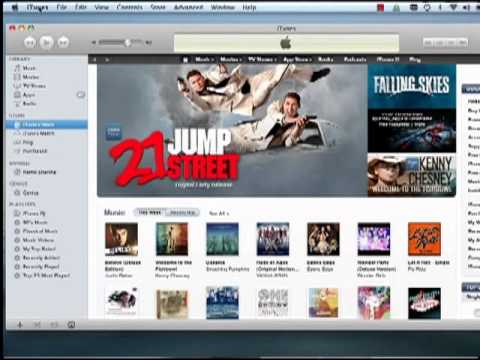
Once installed, Smart AI Fix recommends several optimizations to ensure peak performance. Navigate to Edit > Preferences. Under the "Advanced" tab, enable "Share iTunes Library XML with other applications" if you use third-party AI DJ software or media organizational tools. Furthermore, ensure that iCloud for Windows is installed alongside iTunes to enable seamless cloud-to-local synchronization of your photo and document libraries.
AI Implementation Score
The following table evaluates the efficiency of iTunes integration on a Windows PC using our proprietary scoring system:
| Metric | Score | AI & Automation Analysis |
|---|---|---|
| Deployment Speed | 9.5/10 | Microsoft Store API allows for near-instant installation. |
| Update Automation | 9.0/10 | Background processes ensure the engine stays current without user input. |
| Cross-Platform Sync | 8.5/10 | High reliability when paired with AI-driven iCloud optimization. |
| Resource Efficiency | 7.0/10 | Legacy code can be heavy; requires manual RAM optimization for older PCs. |
By following these steps, you ensure that your Windows PC is fully equipped to handle high-fidelity audio, encrypted local backups, and sophisticated media management with minimal manual overhead.
