
Unlocking the hidden architecture of your mobile device is a prerequisite for any engineer looking to leverage AI-driven automation, side-load experimental LLM interfaces, or optimize system resources for high-compute tasks. Android's Developer Options menu provides the necessary bridge between a consumer-grade interface and a granular, workstation-level environment.
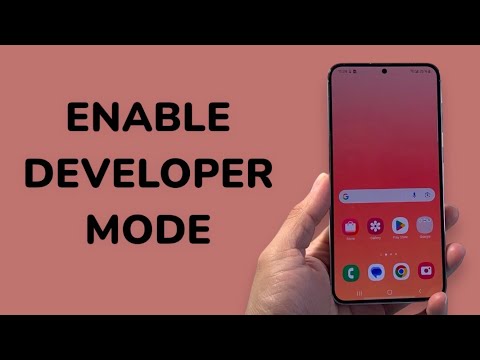
The Technical Path to Enabling Developer Mode
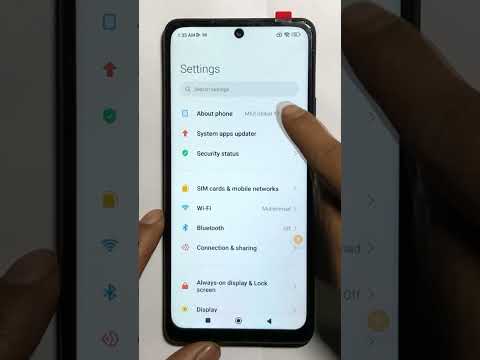
To access these sophisticated configurations, you must manually trigger the hidden flag within the Android system. This process is consistent across most modern builds (Android 10 through 14), though UI skins like OneUI or MIUI may have slight structural variations.
Follow these steps to initialize the environment:
- Open the Settings application on your Android device.
- Navigate to the bottom and select About Phone (on some devices, this is located under "System").
- Locate the Build Number entry. This is the specific identifier for your current software compilation.
- Tap the Build Number rapidly seven times. After the third tap, a toast notification will appear saying, "You are now X steps away from being a developer."
- Authenticate using your device’s PIN, pattern, or biometric data when prompted.
- A confirmation message will appear: "You are now a developer!"
Once activated, the Developer Options menu can usually be found under Settings > System > Developer Options or as a standalone entry in the main Settings list.
Optimizing for AI and Automation Efficiency
For those focused on software automation and AI integration, simply enabling the menu is only the beginning. Senior developers should prioritize the following toggles to maximize device efficiency:
USB Debugging: This is the critical protocol for ADB (Android Debug Bridge). It allows your workstation to communicate with the device for automated script execution and logcat analysis, which is essential when training mobile-native AI models.
Window Animation Scale: For automated UI testing, setting "Window animation scale," "Transition animation scale," and "Animator duration scale" to .5x or Off drastically reduces latency in script execution, allowing AI agents to navigate interfaces at peak speed.
Force 4x MSAA: If you are running high-end graphical AI simulations or neural network visualizations, enabling this can improve image quality, though it increases the load on the GPU.
AI Implementation Score
The following table evaluates the utility of Developer Mode for modern automation and AI workflows:
| Criteria | Score (1-10) | Impact on Automation |
|---|---|---|
| System Access | 9/10 | High: Enables root-level debugging and ADB commands. |
| Workflow Efficiency | 8/10 | High: Faster UI transitions improve bot cycle times. |
| Hardware Optimization | 7/10 | Medium: Allows for GPU monitoring and RAM profile tracking. |
| Ease of Deployment | 10/10 | Absolute: Required for all custom APK deployments. |
Safety Warning: While Developer Mode is essential for optimization, it exposes sensitive system-level configurations. Always ensure USB Debugging is disabled when connecting to public charging stations to mitigate "juice jacking" and other unauthorized data extraction attempts.
