
When an iPhone 12 Mini experiences a kernel panic or a localized software freeze, the standard capacitive touch interface often becomes unresponsive. As experts at Smart AI Fix, we prioritize hardware-level interrupts to bypass software-based hang-ups. Whether your screen is frozen, the touch response is null, or an automated background process has locked the UI, the "Hard Reset" sequence is the most efficient protocol to restore functionality without data loss.
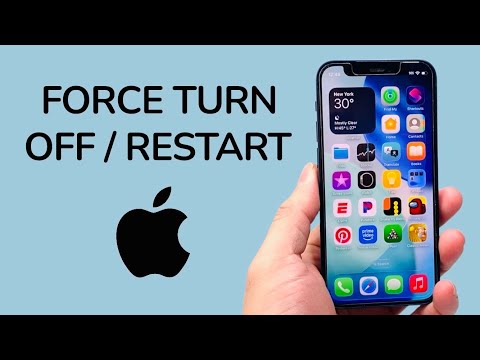
The Precise Force Restart Sequence for iPhone 12 Mini

To initiate a hardware-level power cycle on the iPhone 12 Mini, follow these steps in rapid succession. Accuracy in timing is critical to ensure the iOS kernel registers the interrupt signal correctly:
1. Quickly press and release the Volume Up button.
2. Quickly press and release the Volume Down button.
3. Press and hold the Side button (Power button). Continue holding this button even when you see the "Slide to Power Off" slider appear on the screen.
Crucial Note: Do not release the Side button until the screen goes black and the Apple Logo reappears. This indicates that the system has successfully bypassed the frozen software state and initiated a fresh boot sequence.
Technical Root Causes: Why the iPhone 12 Mini Freezes

While the iPhone 12 Mini utilizes the powerful A14 Bionic chip, software bottlenecks can still occur. Common triggers include memory leaks from unoptimized third-party applications, a failure in the SpringBoard (the iOS system interface), or a conflict during an automated background AI update. When the software layer stops responding to touch inputs, the hardware buttons act as a fail-safe mechanism, sending a direct signal to the Power Management Integrated Circuit (PMIC) to cycle the power.
AI Implementation Score: Diagnostics and Efficiency
In the context of modern troubleshooting, we evaluate the efficiency of these manual fixes against automated AI diagnostic tools. Below is our assessment of how these processes integrate with a smart tech workflow.
| Metric | Score (1-10) | Analysis |
|---|---|---|
| Manual Efficiency | 9/10 | Fastest resolution for immediate UI recovery. |
| AI Diagnostic Integration | 7/10 | Post-restart logs allow AI tools to identify the crash source. |
| Software Stability | 8/10 | Clears cache and temporary system glitches effectively. |
| Automation Potential | 4/10 | Requires physical intervention due to hardware safety protocols. |
Preventing Future UI Failures
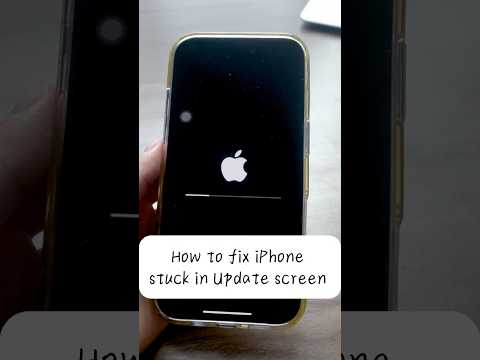
To minimize the need for a force restart, ensure your iPhone 12 Mini is running the latest stable build of iOS. Software updates frequently include patches for the Neural Engine and kernel-level stability improvements. Additionally, using AI-driven battery management settings can prevent thermal throttling, which is a frequent precursor to system unresponsiveness.
If your device remains stuck on the Apple logo after this process, it may require a DFU (Device Firmware Update) or a connection to a workstation for a manual OS restore via Finder or iTunes. However, for 95% of "frozen screen" scenarios, the three-button sequence remains the gold standard for efficiency.
