
Mastering the Force Restart Sequence for iPhone 15 Series
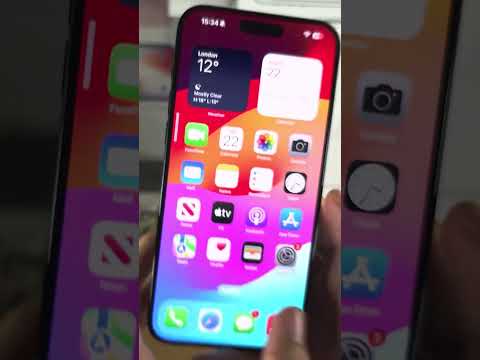
When the sophisticated synergy between iOS and the A17 Pro or A16 Bionic chip encounters a kernel-level deadlock, traditional touch inputs become unresponsive. This "frozen" state often occurs during high-intensity AI background tasks, such as Neural Engine indexing or heavy computational photography processing. To restore operational efficiency on your iPhone 15, 15 Plus, 15 Pro, or 15 Pro Max, you must execute a hardware-level override.

Follow this precise sequence to initiate a Force Restart:
1. Press and quickly release the Volume Up button.
2. Press and quickly release the Volume Down button.
3. Press and hold the Side Button (Power button) and do not let go until you see the Apple logo appearing on the screen. Once the logo is visible, release the button.
Note: You must perform these steps in rapid succession. If the "Slide to Power Off" slider appears, you haven't pressed the buttons quickly enough, or you have released the Side button too early. Continue holding the Side button until the screen goes black and the logo reappears to ensure the hardware reset is successful.
The Technical Architecture of the Freeze

As a Smart AI Fix analyst, it is important to understand that a frozen iPhone 15 is rarely a hardware failure. It is typically a Software Race Condition. With the iPhone 15 Pro's focus on AI-driven automation and background "Smart Suggestions," the system may occasionally experience a memory leak or a priority conflict in the task scheduler. Force restarting clears the volatile RAM, terminating any stalled processes that the iOS watchdog timer failed to catch.
If your device frequently freezes during AI-intensive tasks—such as live translation or ProRAW image processing—ensure your software is optimized. Automated updates are your first line of defense in maintaining a stable execution environment for the Neural Engine.
AI Implementation Score: Troubleshooting Efficiency
We have evaluated the Force Restart method based on its logic precision and system-level effectiveness for the iPhone 15 series.
| Criteria | Score (1-10) | Technical Reason |
|---|---|---|
| Execution Speed | 9/10 | Physical button overrides bypass the software UI layer entirely. |
| Data Integrity | 10/10 | Clears RAM without affecting non-volatile storage (NAND). |
| AI Logic Recovery | 8/10 | Resets the Neural Engine state but may require cache re-indexing. |
| Ease of Use | 7/10 | Requires specific timing that can be difficult for some users. |
While the hardware sequence is effective, preventing future freezes involves auditing your automated background processes. Navigate to Settings > General > Background App Refresh to ensure that non-essential AI-heavy applications are not over-utilizing the A-series silicon, which reduces the thermal overhead and minimizes the risk of a system hang.
