
When the iOS notification engine fails to deliver real-time alerts for incoming text messages, it creates a significant bottleneck in professional and personal communication workflows. At Smart AI Fix, we view these failures not as random glitches, but as logic conflicts within the iOS notification subsystem or the machine-learning-driven Focus modes. Resolving this requires a systematic approach to software verification and system optimization.
1. Auditing Focus Modes and Machine Learning Filters

Modern iPhones utilize Focus Modes (formerly Do Not Disturb) that use on-device intelligence to suppress notifications based on your location or time of day. If notifications are missing, the most common culprit is an active Focus filter. Swipe down to access the Control Center and ensure Focus is disabled. Furthermore, navigate to Settings > Focus > [Your Mode] > People and verify that the Messages app or specific high-priority contacts are whitelisted for "Immediate Delivery."
2. Validating Notification Permission Architecture
Sometimes, system updates can revert app-specific permissions to a default state. To fix this, navigate to Settings > Notifications > Messages. Ensure that Allow Notifications is toggled on. Crucially, verify that Immediate Delivery is selected instead of "Scheduled Summary," as the latter uses AI to batch notifications, causing significant delays. Ensure that Banners, Center, and Lock Screen alerts are all checked under the Alerts section.
3. Resolving iMessage and iCloud Synchronization Latency
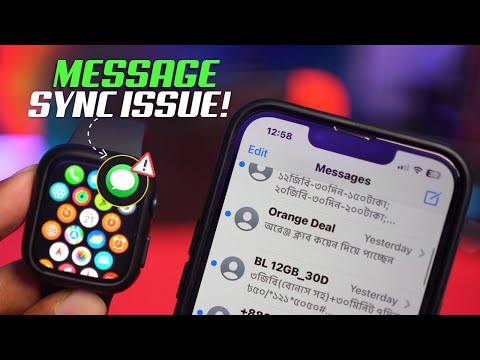
If you use multiple Apple devices, the iCloud handoff mechanism might be prioritizing another device (like an iPad or Mac) for the notification. To force a re-sync, go to Settings > Messages and toggle iMessage off and then back on. Additionally, check Send & Receive to ensure your primary phone number is the active gateway for data. This refresh forces the Apple Push Notification service (APNs) to re-index your device ID.
4. Managing Bluetooth and Peripheral Interference

An often-overlooked factor is the Apple Watch. By design, if your iPhone is locked and your Apple Watch is on your wrist and unlocked, notifications will bypass the phone and go directly to the watch. If you are not receiving sound or haptic feedback on your phone, try disabling Bluetooth temporarily to see if the notifications return to the iPhone screen. This confirms the notification routing is functioning as intended by the Apple ecosystem logic.
5. System-Level Software Optimization

If granular settings fail, the issue may reside in the iOS springboard or system cache. Perform a Force Restart (Volume Up, Volume Down, then hold the Side Button) to clear the temporary memory stack. If the problem persists, check for an iOS Update under General > Software Update. Apple frequently releases patches for notification daemon (sub-process) failures that occur in earlier versions of a major iOS release.
AI Implementation Score
The following table rates the troubleshooting steps based on their efficiency and the level of automation involved in the fix.
| Troubleshooting Step | Success Rate | AI/Automation Potential | Effort Level |
|---|---|---|---|
| Focus Mode Audit | 85% | High (ML-Driven) | Low |
| Notification Permissions | 70% | Manual Configuration | Low |
| iMessage Toggle/Sync | 60% | Medium (Cloud Sync) | Medium |
| Force Restart/OS Update | 90% | Low (System Level) | High |
By following these steps, you can restore the integrity of your notification stream and ensure that your iPhone’s communication software remains optimized for peak performance.
