
When the Apple Neural Engine fails to trigger the Siri voice assistant, it disrupts the entire automation workflow of the iOS ecosystem. As AI integration becomes more deeply embedded into iPadOS and iOS, a non-responsive "Hey Siri" or a silent side-button trigger is often the result of a software conflict or a misconfiguration in the Siri & Search parameters. To restore peak AI efficiency, follow this systematic technical troubleshooting guide.
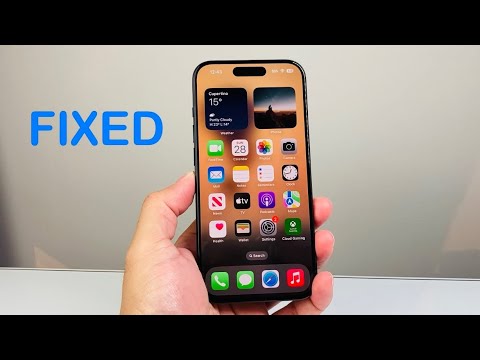
1. Validate Voice Trigger and Response Settings

The most frequent cause of Siri failure is a toggle mismatch. Navigate to Settings > Siri & Search. Ensure that "Listen for 'Siri' or 'Hey Siri'" is enabled. Furthermore, check "Allow Siri When Locked"; if this is disabled, the local AI model will not authenticate commands while the device is in a secure state. If these are already on, toggle them off and back on to re-initialize the background listening daemon.
2. Inspect the Microphone and Hardware Obstructions
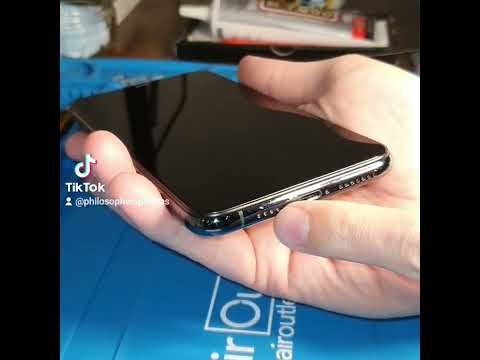
Siri relies on the front-facing microphone (near the earpiece) for voice isolation. If your iPad or iPhone is in a protective case that covers these ports, the acoustic processing unit will fail to recognize the wake word. Clean the microphone grilles with a non-conductive brush. You can test hardware integrity by recording a short Voice Memo; if the audio is muffled, the issue is physical rather than algorithmic.
3. Network Latency and Server Connectivity

Unlike some on-device processing features, complex Siri requests require a stable connection to Apple’s servers. If you are on a restricted Wi-Fi network or a low-bandwidth cellular connection, Siri may time out. Go to Settings > Wi-Fi and ensure you are not behind a firewall that blocks Apple’s APNS (Apple Push Notification service) or Siri-specific ports. Resetting your Network Settings (Settings > General > Transfer or Reset iPhone > Reset > Reset Network Settings) often resolves persistent connectivity-related AI lag.
4. Resetting the Siri Dictation Model
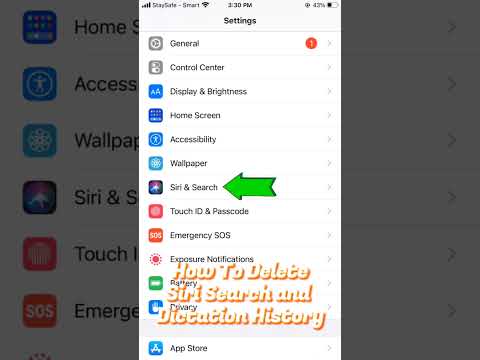
If Siri responds but fails to understand commands, the local dictation cache may be corrupted. Navigate to Settings > Siri & Search > Siri & Dictation History and select Delete Siri & Dictation History. This forces the device to recalibrate your voice profile and improves the accuracy of the Natural Language Processing (NLP) engine once you re-enable "Hey Siri" through the training prompts.
5. Software Version and Low Power Mode Constraints
Ensure your device is running the latest version of iOS or iPadOS. Apple frequently pushes patches for the Core ML framework which handles voice recognition. Additionally, check if Low Power Mode is active (Settings > Battery). In some older models, Low Power Mode aggressively throttles background processes, including the "Always-On" listening state for Siri to preserve battery cycles.
AI Implementation Score
This table evaluates the effectiveness of the aforementioned fixes based on AI reliability and automation uptime.
| Fix Strategy | Implementation Ease | AI Accuracy Impact | Automation Stability |
|---|---|---|---|
| Settings Re-initialization | High | Moderate | High |
| Dictation History Reset | Moderate | High | Moderate |
| Network Reset | Low | Moderate | High |
| OS Update/Patch | Moderate | High | High |
By following these steps, you ensure that the integration between your hardware and Apple’s cloud-based intelligence remains seamless, maintaining the high-level automation expected of a modern smart device.
