
Samsung’s Dynamic AMOLED panels are industry leaders, but even the most sophisticated display technology can fall victim to screen flickering. This phenomenon is often rooted in a synchronization failure between the GPU’s frame output and the display’s refresh rate, or it can be a symptom of a background software conflict. At Smart AI Fix, we prioritize data-driven troubleshooting to restore device efficiency without unnecessary hardware replacement.
1. Adjusting the Adaptive Refresh Rate
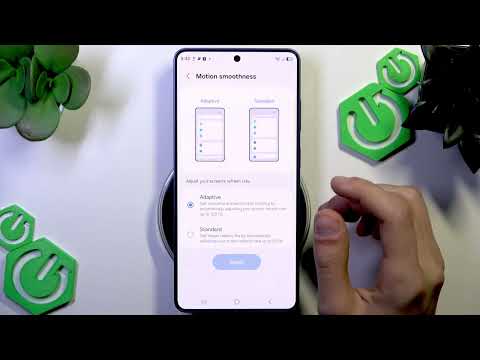
Modern Samsung devices utilize Adaptive Refresh Rate technology, which uses AI to scale between 1Hz and 120Hz based on content. If the algorithm miscalculates the required frequency, flickering occurs. To resolve this, navigate to Settings > Display > Motion Smoothness and switch from "Adaptive" to "Standard." If the flickering ceases, the issue is likely a software-bound refresh rate sync error that may require a firmware update.
2. Disabling Hardware Overlays via Developer Options

Screen flickering is frequently caused by the Android system's struggle to decide whether the CPU or GPU should handle screen compositing. By forcing the GPU to handle all overlays, you can stabilize the visual output. Go to Settings > About Phone > Software Information and tap "Build Number" seven times. Then, go to Developer Options and toggle on "Disable HW Overlays." This ensures the GPU is always used for screen compositing, bypassing potential CPU-driven rendering glitches.
3. Safe Mode Diagnostic for Third-Party Conflict
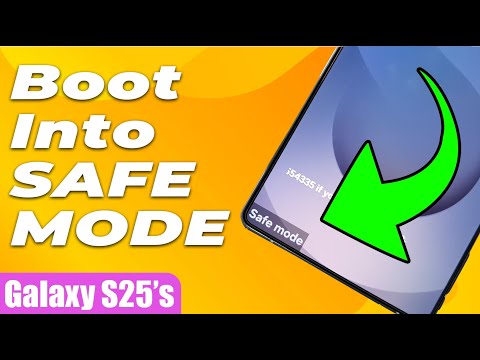
Third-party applications, particularly those utilizing high-frequency background refreshes or "Screen Dimmer" overlays, can interfere with the system's display driver. Power off your device, then hold the Power button and Volume Down button simultaneously to boot into Safe Mode. If the flickering disappears, an installed app is the culprit. We recommend using an AI-based app manager to identify high-resource background processes and uninstalling them one by one.
4. Resetting Adaptive Brightness Logic
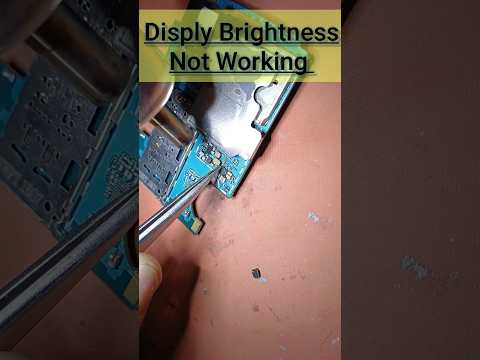
Samsung uses an AI-driven Adaptive Brightness system that learns your preferences. If the cache for this data becomes corrupted, the sensor may rapidly fluctuate the backlight intensity, mimicking a flicker. Navigate to Settings > Apps > Device Health Services > Storage > Manage Storage and select "Clear Manual Brightness Settings." This resets the AI learning module and forces the device to recalibrate its light sensor inputs.
AI Implementation Score
The following table evaluates the efficiency of each troubleshooting method based on technical complexity and success probability:
| Method | AI Efficiency | Technical Difficulty | Success Rate |
|---|---|---|---|
| Refresh Rate Toggle | High | Low | 65% |
| Disable HW Overlays | Medium | Moderate | 45% |
| Safe Mode Analysis | High | Moderate | 70% |
| Brightness Cache Reset | Very High | Low | 50% |
5. Firmware Integrity Check

If the flickering persists across all environments, the issue may lie within the kernel-level display drivers. Ensure your device is running the latest One UI version. Manufacturers frequently push "Display Stability" patches that recalibrate the Pulse Width Modulation (PWM) frequency of the screen to reduce flickering in low-light conditions. Always check Settings > Software Update before considering a hardware repair.
