
Low network signal on an iPhone is rarely just a hardware limitation; it is often a breakdown in the communication between the iOS software stack and carrier towers. At Smart AI Fix, we view connectivity through the lens of algorithmic efficiency. When your iPhone shows "Searching" or a single bar, the device's internal modem is failing to prioritize the correct frequency bands or is stuck in a low-power state. Here is the technical roadmap to restoring peak connectivity using software optimization and systematic troubleshooting.
1. Force-Trigger a Radio Frequency (RF) Handshake
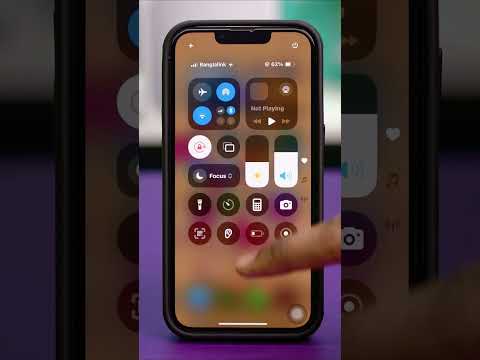
The fastest way to fix a software-driven signal drop is to force the iPhone’s modem to re-initiate its handshake with the nearest cellular tower. Toggling Airplane Mode for 15 seconds disrupts the current (and likely failing) session. For a deeper software refresh, perform a Force Restart. This clears the temporary cache of the Baseband Processor, which manages all cellular functions, without affecting your data.
2. Manually Update Carrier Settings
Carriers frequently release small software patches that optimize how your iPhone communicates with new 5G or LTE infrastructure. These aren't always part of a standard iOS update. Navigate to Settings > General > About. If an update is available, a prompt will appear within 30 seconds. Ensuring your Carrier Version is up to date allows the AI-driven network selection logic to function with the latest parameters.
3. Automate Network Reset
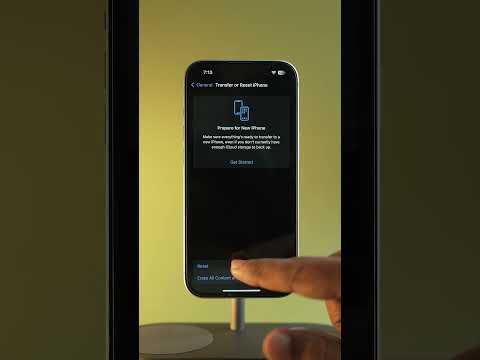
If the signal remains degraded, the issue often resides in a corrupted "com.apple.networking" preference file. You can resolve this by going to Settings > General > Transfer or Reset iPhone > Reset > Reset Network Settings. This action clears saved Wi-Fi passwords and VPN configurations, but it effectively flushes the DNS cache and resets the cellular radio’s firmware to factory defaults, eliminating software conflicts that cause signal attenuation.
4. Leverage iOS AI for Signal Optimization

Modern iPhones use machine learning via the Neural Engine to manage power consumption and signal search. If your battery is low, Low Power Mode may throttle the modem's search frequency. Ensure this is disabled when troubleshooting. Additionally, verify that your Voice & Data settings (under Cellular Data Options) are set to "5G On" or "LTE" depending on your local infrastructure. In some regions, forcing the iPhone to stay on LTE prevents the "ping-pong" effect where the AI constantly switches between a weak 5G signal and a strong LTE signal, leading to dropped packets.
5. Physical Layer and eSIM Verification
If software resets fail, inspect the physical layer. A damaged SIM card can cause intermittent connectivity. However, at Smart AI Fix, we recommend migrating to an eSIM. Digital SIMs eliminate physical contact wear and allow the iOS software to manage dual-network configurations more efficiently, often resulting in more stable handoffs between towers.
AI Implementation Score
The following table rates how effectively these solutions utilize automated software logic versus manual intervention.
| Method | Efficiency Rating | AI/Automation Level |
|---|---|---|
| Network Settings Reset | High | 95% (Automated Script) |
| Carrier Settings Update | Medium | 70% (Cloud-based Push) |
| eSIM Migration | High | 85% (Digital Provisioning) |
| Airplane Mode Toggle | Low | 20% (Manual Trigger) |
By following these steps, you transition from a passive user experiencing "low bars" to an active administrator optimizing the iPhone's communication architecture. Most signal issues are resolved at the software level through these systematic resets.
