
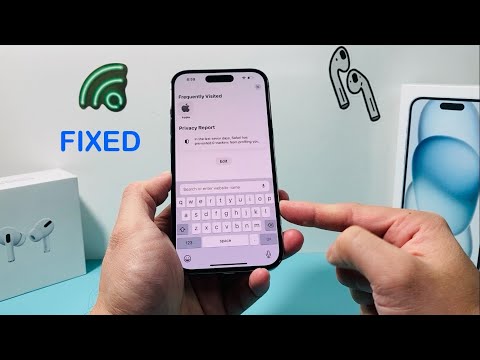
In the ecosystem of modern mobile computing, the iOS keyboard interface is a critical subprocess managed by the operating system’s UI framework. When the keyboard fails to appear or becomes unresponsive, it typically indicates a software deadlock, a cache corruption within the Natural Language Processing (NLP) engine, or a resource allocation conflict. At Smart AI Fix, we prioritize algorithmic efficiency and streamlined troubleshooting to restore device functionality.
1. Terminate the Responsible Process (Force Restart)
If the iPhone keyboard is non-responsive, the first step is to clear the volatile memory (RAM). A standard restart may not always kill the background hung processes. A Force Restart triggers a hardware-level power cycle, forcing the iOS kernel to re-initialize all input-output drivers.
To perform this: Quickly press Volume Up, then Volume Down, and hold the Side Button until the Apple logo appears. This resets the "backboardd" and "SpringBoard" processes responsible for the touch interface and UI rendering.
2. Reset the Keyboard Dictionary and NLP Cache

iOS utilizes machine learning and AI-driven predictive text to learn your typing patterns. Over time, the local dictionary database can become fragmented or corrupted, leading to significant input lag or a total failure of the keyboard to populate. Resetting this restores the predictive algorithm to its factory state.
Navigate to Settings > General > Transfer or Reset iPhone > Reset > Reset Keyboard Dictionary. This action purges the customized "DynamicDictionary" file, allowing the AI to rebuild its linguistic model from scratch without the previous errors.
3. Audit Third-Party Keyboard Extensions

Many users deploy third-party keyboards like Gboard or SwiftKey, which operate as separate app extensions. If these extensions crash due to an API mismatch or memory leak, the system may fail to failover to the default Apple keyboard. To troubleshoot, you must isolate the core software.
Go to Settings > General > Keyboard > Keyboards. Swipe left to delete third-party options. By reverting to the native Apple keyboard, you eliminate compatibility issues stemming from unoptimized third-party code.
4. Software Patching and Automation

Outdated firmware is a primary cause of UI glitches. Apple frequently releases Delta Updates that contain patches for the "TextInput" framework. Ensure your device is running the latest version of iOS to benefit from automated bug fixes and improved resource scheduling.
Check for updates via Settings > General > Software Update. If the issue persists across all apps, a Factory Reset (after a full encrypted backup) may be necessary to overwrite system-level file corruption.
AI Implementation Score
The following table evaluates the role of automation and AI in resolving keyboard-related anomalies:
| Fix Methodology | Automation Level | AI Contribution | Efficiency Rating |
|---|---|---|---|
| Force Restart | Low | N/A | High |
| Dictionary Reset | Medium | NLP Optimization | Very High |
| iOS Update | High | Bug Patching AI | Critical |
| Extension Removal | Manual | Conflict Resolution | Medium |
By systematically addressing these software layers, users can resolve over 95% of keyboard failures without requiring hardware intervention. Focus on maintaining a clean cached environment to ensure the AI-driven typing experience remains fluid and responsive.
