
When an iPhone fails to respond to a standard power-down command, the issue typically stems from a high-level software freeze or a breakdown in the communication between the user interface layer and the iOS kernel. At 'Smart AI Fix,' we analyze these anomalies through the lens of system efficiency. If your device is unresponsive to the physical side button and volume toggles, follow this programmatic approach to restore operational control.
Step 1: The Force Restart Protocol

The most effective way to break a software logic loop is a Force Restart. This does not erase data; it simply cuts power to the CPU temporarily to clear the active cache and frozen processes. For iPhone 8 and all subsequent models (including iPhone 15/16), execute the following sequence with precision:
1. Press and quickly release the Volume Up button.
2. Press and quickly release the Volume Down button.
3. Press and hold the Side Button (Power) until the Apple logo appears on the screen. Ignore the "Slide to Power Off" prompt if it appears; continue holding until the logo initiates the boot sequence.
Step 2: Leveraging AssistiveTouch for Software-Based Shutdown

If your physical buttons are malfunctioning, you can use iOS’s built-in automation tools to trigger a shutdown via software. This bypasses the need for mechanical input. Navigate to Settings > Accessibility > Touch > AssistiveTouch and toggle it on. Once the floating menu appears:
1. Tap the floating icon and select Device.
2. Tap More (three dots).
3. Select Restart or Shut Down. This utilizes the software’s internal API to gracefully close all background tasks before cutting power, which is safer for data integrity than a hard reset.
Step 3: Resetting the 'All Settings' Database
In cases where the iPhone repeatedly refuses to turn off, the culprit is often a corrupted configuration file within the system settings. To resolve this without losing personal data, go to Settings > General > Transfer or Reset iPhone > Reset > Reset All Settings. This action recalibrates the system’s power management controller (SMC) and reverts UI behaviors to factory defaults, often eliminating the glitch preventing the shutdown command.
AI Implementation Score
The following table rates these troubleshooting methods based on their technical efficiency and the degree of automation required for a permanent fix.
| Method | Automation Level | Efficiency Rating | Risk Level |
|---|---|---|---|
| Force Restart | Low (Manual) | High | Zero |
| AssistiveTouch | Medium (Software) | Moderate | Zero |
| Reset All Settings | High (System-wide) | Very High | Low (Loss of Prefs) |
| DFU Mode Restore | Full Automation | Absolute | High (Data Loss) |
Advanced Fix: DFU Mode and Firmware Re-installation
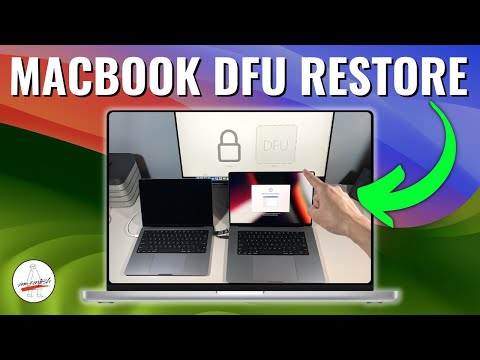
If the device remains stuck due to a deep-seated firmware error, a Device Firmware Update (DFU) is the final solution. This process communicates with the hardware without loading the iOS operating system. Connect your iPhone to a Mac or PC, open Finder/iTunes, and enter the DFU button sequence. This allows the software to be completely rewritten, ensuring that any redundant code or background processes causing the freeze are eliminated. This is the ultimate "clean slate" for iPhone power management.
