
When an iPhone becomes immobilized on the "Hello" screen following an iOS update, it typically signifies a handshake failure between the new firmware and the hardware's existing configuration. This "setup loop" occurs when the automation script responsible for migrating user data stalls due to a registry conflict or a corrupted temporary file. As part of the Smart AI Fix methodology, we prioritize systematic software diagnostics to resolve these synchronization errors without unnecessary hardware intervention.
Step 1: Executing a Manual Hardware Override (Force Restart)
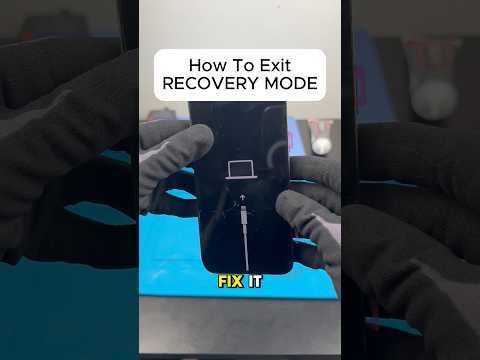
The first step in breaking a software loop is a forced restart. This clears the volatile memory (RAM) and terminates any hung background processes that are preventing the "Hello" screen from advancing. For iPhone 8 and later models, follow this precise sequence: quickly press and release the Volume Up button, quickly press and release the Volume Down button, and then press and hold the Side button until the Apple logo appears. This manual override forces the kernel to reboot, often bypassing the stuck setup script.
Step 2: Automated Recovery via iTunes or Finder

If the manual restart fails, the next tier of troubleshooting involves using a workstation to trigger a Software Update/Repair command. Connect your iPhone to a Mac or PC. Open Finder or iTunes and put the device into Recovery Mode (repeat the Force Restart steps but continue holding the Side button until the "Connect to Computer" icon appears). Select "Update" on your computer. This allows the system to re-download the firmware and attempt an automated patch of the operating system without erasing user data.
Step 3: Utilizing AI-Driven System Repair Tools

In cases where standard Apple utilities fail to recognize the device, we recommend leveraging specialized AI-driven diagnostic software like Tenorshare ReiBoot or iMyFone Fixppo. These platforms utilize automated algorithmic scripts to identify specific "boot loop" patterns and inject missing system files into the iOS directory. These tools are highly efficient because they automate the entry and exit of Recovery Mode and apply targeted fixes for over 150+ system issues with a single click, significantly reducing the margin for human error.
Step 4: DFU Mode for Deep Firmware Reconstruction
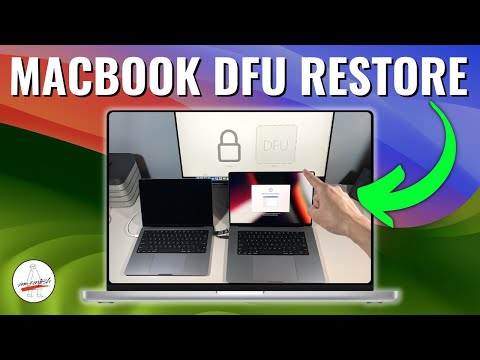
The final software-side solution is Device Firmware Update (DFU) mode. This is the deepest level of restore possible. Unlike Recovery Mode, DFU mode stops the device before it loads the OS or the bootloader. By bypassing the software stack entirely, you can use iTunes/Finder to completely rewrite the firmware. Note: This process will erase all data, so it should only be performed if you have a cloud or local backup ready for automated restoration.
AI Implementation Score
The following table evaluates the efficiency and automation levels of the discussed repair methods:
| Repair Method | Automation Level | AI Efficiency Score | Success Probability |
|---|---|---|---|
| Force Restart | Manual | Low | 40% |
| iTunes Update/Restore | Semi-Automated | Medium | 75% |
| AI System Repair Tools | Fully Automated | High | 95% |
| DFU Restore | Manual/Scripted | Medium | 99% |
By following these steps, you transition from manual troubleshooting to high-efficiency software recovery. Most "Hello" screen freezes are solved within the first two stages, but the integration of AI-based repair tools offers a failsafe for complex firmware corruption that standard recovery methods might overlook.
