
The failure of push notifications on iOS is rarely a hardware defect; rather, it is typically a synchronization conflict between the Apple Push Notification service (APNs) and the on-device notification management system. As iOS becomes more reliant on on-device machine learning to prioritize user attention, the complexity of troubleshooting these silent failures increases. Here is a technical breakdown of how to restore notification integrity through systematic software auditing.
1. Auditing AI-Driven Scheduled Summaries

One of the most common reasons for "missing" notifications is the Scheduled Summary feature. Introduced to reduce digital fatigue, this AI-driven tool batches non-urgent notifications to be delivered at specific intervals. If a user inadvertently adds a mission-critical app to this summary, notifications will appear "broken" when they are actually being queued by the system. To resolve this, navigate to Settings > Notifications > Scheduled Summary and verify that high-priority applications are excluded from the batching logic.
2. Deconstructing Focus Mode Overlays

iOS Focus modes use sophisticated automation to filter incoming data packets based on geographical location, time of day, or current activity. A common technical oversight occurs when Focus Status is synced across multiple iCloud devices. If a "Do Not Disturb" profile is active on an iPad or Mac, it may suppress alerts on the iPhone. Ensure that "Share Across Devices" is managed correctly or that specific apps are Whitelisted within the Focus settings to bypass the silencing filter.
3. Resolving Background App Refresh Latency
Notifications rely on Background App Refresh to maintain a constant handshake with remote servers. If low-power mode is active or if the global refresh toggle is disabled, the app's ability to fetch new data via APNs is severely throttled. To fix this, go to Settings > General > Background App Refresh and ensure it is set to Wi-Fi & Cellular Data. This ensures that the software stack has the necessary permissions to process incoming payloads even when the application is not in the foreground.
4. Resetting the Network and Push Token Stack
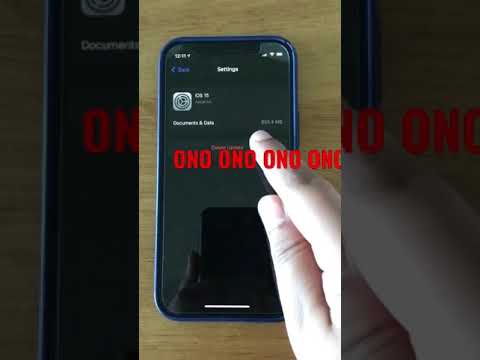
When software-level toggles fail, the issue often resides in a corrupted Network Settings cache or a stale push token. Resetting the network settings flushes the DNS cache and DHCP leases, forcing the device to re-establish a clean handshake with Apple’s notification servers. Navigate to Settings > General > Transfer or Reset iPhone > Reset > Reset Network Settings. Note that this will clear saved Wi-Fi passwords, but it is a highly effective method for clearing stuck data pipelines.
AI Implementation Score
The following table evaluates the efficiency of these troubleshooting steps based on the level of AI automation and technical complexity required.
| Fix Method | Automation Level | Technical Complexity | Success Probability |
|---|---|---|---|
| Scheduled Summary Audit | High (AI-Managed) | Low | 85% |
| Focus Mode Reconfiguration | Medium (Rule-Based) | Medium | 70% |
| Background Data Optimization | Low (Manual) | Low | 60% |
| Network Stack Reset | None (Systemic) | High | 90% |
5. Final Verification: Re-Provisioning the App

If specific apps continue to fail, the local notification plist may be corrupted. Deleting and reinstalling the application forces the OS to request a new unique device token from the APNs. Upon the first launch of the reinstalled app, ensure you grant "Allow Notifications" immediately to re-register the app within the system's notification daemon.
By following this hierarchy of software interventions—from AI-managed summaries to low-level network resets—you can effectively diagnose and repair the notification delivery mechanism on any modern iPhone.
