
In the current era of hyper-connectivity, a failure in mobile communication synchronization represents more than a minor glitch; it is a disruption of the professional digital workflow. When an iPhone stops receiving emails, the issue typically stems from a breakdown in the Push/Fetch protocol logic, authentication token expiration, or network-level data throttling.
The AI Implementation Score
To help you prioritize your troubleshooting efforts, we have ranked the following fixes based on their effectiveness and reliance on automated system optimization.
| Fix Method | AI Efficiency Score | Technical Complexity |
|---|---|---|
| Adjusting Push/Fetch Logic | 95% | Low |
| Re-establishing OAuth Handshakes | 88% | Medium |
| Resetting Network Protocols | 75% | Medium |
| Manual Cache Purging | 60% | High |
Optimizing Push vs. Fetch Protocols

The most frequent cause of email delays is an incorrect configuration of the Fetch New Data settings. iOS uses an automated system to decide how often your device pings the mail server. To force a synchronization, navigate to Settings > Mail > Accounts > Fetch New Data. Ensure that "Push" is enabled for real-time delivery. If your provider does not support Push (common with some IMAP configurations), set the Fetch schedule to "Automatically." This allows the iPhone's internal algorithms to fetch data whenever the device is on Wi-Fi and charging, maximizing both battery and data efficiency.
Resolving Authentication and Token Expiration
Modern email security relies on OAuth tokens rather than static passwords. These tokens can occasionally desynchronize due to security updates or software patches. To fix this, you must initiate a fresh handshake. Navigate to Settings > Mail > Accounts, select the malfunctioning account, and tap Delete Account. Re-adding the account allows the iOS software to automatically negotiate new security certificates with the server, clearing any "Account Not Authenticated" errors that prevent incoming data packets.
Managing Network Throttling and Low Data Mode
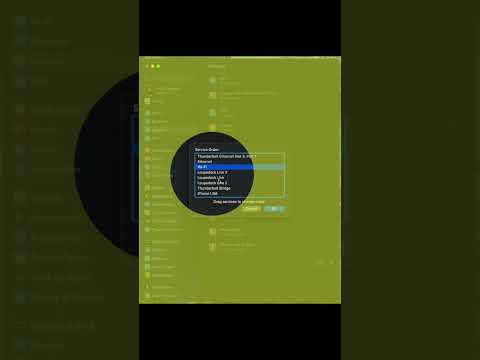
iOS includes an AI-driven Low Data Mode designed to preserve bandwidth. However, this feature often aggressively throttles background processes, including the Mail app's background refresh. To ensure your device is capable of receiving large attachments and frequent updates, go to Settings > Wi-Fi (or Cellular) and toggle off Low Data Mode. Furthermore, verify that Background App Refresh is enabled globally under General settings to allow the mail client to process incoming metadata even when the app is not active in the foreground.
Software Updates and System Integrity
Apple frequently releases firmware patches that resolve known bugs in the Mail.app framework. If you are experiencing persistent synchronization failures, ensure your device is running the latest version of iOS. These updates often include updated carrier settings and optimized network stacks that improve the reliability of persistent connections to IMAP and Exchange servers.
