
iPhone calendar desynchronization is more than a minor inconvenience; in an era of algorithmic scheduling and AI-driven productivity, a failure in data parity can lead to critical workflow bottlenecks. When your iPhone calendar stops syncing with iCloud, Google, or Outlook, the issue usually resides in the metadata handshake or a stale authentication token within the iOS background fetch architecture.

Step 1: Verify System Status and Internet Latency
Before deep-diving into software configurations, ensure the disruption isn't server-side. Visit the Apple System Status page to verify that iCloud Calendar services are operational. Furthermore, check your network stability. AI-based synchronization tools require a consistent data stream to resolve version conflicts. If you are on a restricted network or a low-data mode, background synchronization is often the first process the OS suspends to preserve bandwidth.
Step 2: Force a Manual Refresh of the Calendar Metadata

Sometimes the local database cache becomes unresponsive. You can force the Calendar app to re-index its entries:
1. Open the Calendar app on your iPhone.
2. Tap on Calendars at the bottom center of the screen.
3. Pull down on the list to trigger a manual refresh. You will see a spinning activity indicator at the top. This forces the iOS sync engine to ping connected servers for any delta changes.
Step 3: Audit Account-Specific Sync Settings
If the refresh fails, the issue likely lies in the account authentication layer. Navigate to Settings > Calendar > Accounts. Select the specific account (e.g., Gmail or iCloud) and ensure the Calendars toggle is switched to ON.
If it is already on, try the "Toggle Reset": turn it off, select Delete from My iPhone (this only removes local cached data, not server data), wait 30 seconds, and toggle it back on. This resets the API connection and forces a clean download of your schedule.
Step 4: Optimize Fetch and Push Settings
For automation-heavy users, the frequency of data retrieval is vital. Go to Settings > Calendar > Accounts > Fetch New Data. Ensure that Push is enabled. For accounts that do not support Push (like some IMAP or older Google configurations), set the Fetch schedule to Automatically or Every 15 Minutes to minimize synchronization lag.
Step 5: Check Default Calendar Configuration
A common "invisible" error occurs when new events are saved to a local "On My iPhone" calendar instead of a cloud-synced one. Go to Settings > Calendar > Default Calendar. Ensure a cloud-based account (like iCloud or Work Outlook) is selected as the primary destination for new entries.
AI Implementation Score
The following table evaluates the efficiency of these troubleshooting steps in the context of modern software automation:
| Fix Method | Automation Potential | Technical Complexity | Resolution Speed |
|---|---|---|---|
| Manual Refresh | Low | Minimal | Instant |
| Account Toggle Reset | Medium | Moderate | 2-3 Minutes |
| Fetch/Push Optimization | High | Moderate | Permanent |
| API Credential Re-auth | Low | High | 5 Minutes |
Final Protocol: Resetting Network Settings
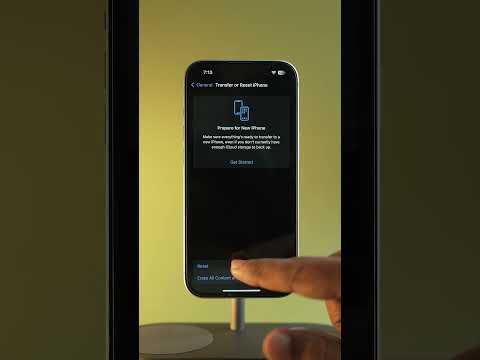
If the software-level fixes fail, the underlying network stack may be corrupted. Navigate to Settings > General > Transfer or Reset iPhone > Reset > Reset Network Settings. This will clear saved Wi-Fi passwords and VPN configurations, but it often resolves deep-seated socket errors that prevent the iPhone from communicating with sync servers.
By following these steps, you ensure that your scheduling remains robust and capable of feeding accurate data into your AI productivity suite, keeping your automation pipelines running without interruption.
