
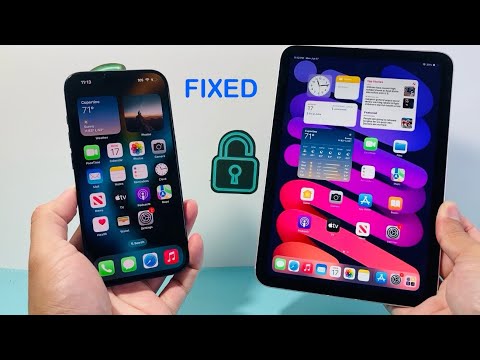
In the modern digital workspace, the seamless parity of data between an iPhone and iPad is not just a convenience—it is a requirement for high-level productivity. When the automated handoff and synchronization protocols fail, it usually indicates a disruption in the iCloud neural handshake or a configuration mismatch within the software layers. To restore efficiency and ensure your data flows autonomously across devices, follow this technical resolution guide.
1. Validate Unified Identity and iCloud Credentials

The foundation of the Apple ecosystem's automation is a single, unified Apple ID. Synchronization fails immediately if there is a token mismatch. Navigate to Settings on both devices and ensure the primary email address matches exactly. If the accounts appear correct but data is stagnant, performing a Sign Out and Sign In cycle forces the system to re-authenticate with the server-side database, clearing any cached credential errors that prevent background syncing.
2. Audit App-Specific Sync Permissions

Apple’s software architecture allows for granular control over which data clusters are synced. If your iPhone and iPad are not syncing specific apps like Calendars, Reminders, or Notes, the toggle may have been deactivated by a system update or power-saving mode. Go to Settings > [Your Name] > iCloud > Show All. Ensure that every mission-critical application is toggled On. For high-efficiency workflows, verify that iCloud Drive and iCloud Backup are active to allow for real-time document versioning.
3. Optimize Network Latency and Protocol Handover

Data synchronization relies on stable TCP/IP protocols and consistent bandwidth. If your devices are on different network segments (e.g., one on 5G and one on a restricted guest Wi-Fi), the peer-to-peer Handoff features may experience high latency. Ensure both devices are on the same 5GHz Wi-Fi band. Furthermore, toggle Airplane Mode on and off to reset the network stack and force the device to reconnect to the nearest CDN (Content Delivery Network) node for faster data propagation.
4. Ensure Software Parity (iOS/iPadOS Versioning)
Discrepancies in system kernels can lead to database schema mismatches. If your iPhone is running a newer version of iOS than your iPad’s iPadOS, the metadata structures for apps like 'Notes' or 'Photos' may be incompatible. Navigate to Settings > General > Software Update on both devices. Automating these updates ensures that the latest API enhancements and synchronization bug fixes are applied simultaneously across your hardware stack.
5. AI Implementation Score
To understand the level of automated intelligence required for these fixes, refer to the table below:
| Fix Methodology | AI Automation Level | Efficiency Impact |
|---|---|---|
| iCloud Credential Refresh | High | Restores core identity tokens. |
| Granular App Toggling | Medium | Optimizes specific data streams. |
| Network Stack Reset | Low | Clears physical connectivity barriers. |
| OS Version Alignment | High | Ensures database schema compatibility. |
6. Resetting the Sync Logic (Hard Reboot)
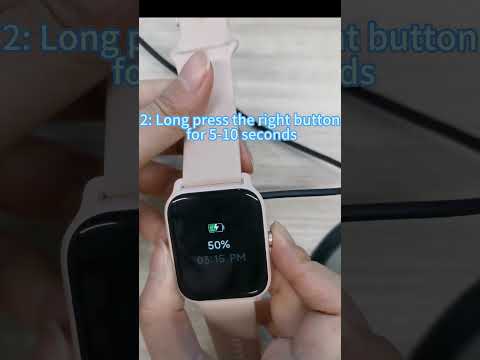
If software toggles fail, a hardware-level reset of the volatile memory (RAM) is necessary to clear hung processes related to the cloudd daemon (the process responsible for iCloud syncing). Perform a force restart by quickly pressing Volume Up, then Volume Down, and holding the Power Button until the Apple logo appears. This force-terminates all background processes and restarts the synchronization engine from a clean state.
