
In the ecosystem of modern mobile communication, GIFs (Graphics Interchange Format) have evolved from simple loops to sophisticated forms of non-verbal data expression. When your iPhone fails to load GIFs or the keyboard search functionality stalls, it is rarely a hardware failure. Instead, it is typically a breakdown in the software handshake between Apple’s #images framework and the device’s data processing layer. At Smart AI Fix, we view these interruptions as algorithmic sync errors that can be resolved through systematic software optimization.

1. Verify Native #images Integration
The primary source of GIFs on iOS is the #images app within iMessage. If this native extension is disabled, the GIF search bar will appear empty or non-functional. To re-initialize this AI-driven indexing service:
Open Messages > tap the App Store icon > swipe left on the app drawer and tap More (...). Ensure that #images is toggled to ON. If it is already on, toggle it off and back on to force a re-fetch of the metadata from Apple’s servers.
2. Geographic and Regional AI Restrictions
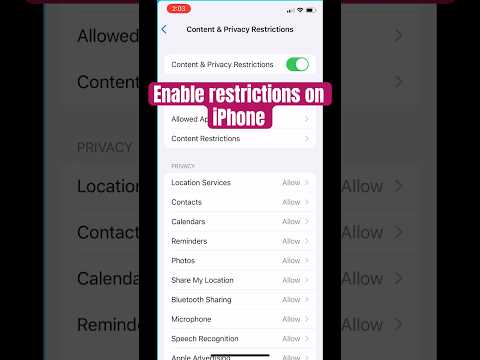
Apple’s native GIF search functionality utilizes machine learning to filter content based on regional compliance and language processing. If your iPhone is set to a region where #images is not supported, the feature will vanish or fail to load content. Ensure your region is set to a supported territory (like the US, UK, Canada, or Australia) by navigating to Settings > General > Language & Region. Software automation often restricts these features to comply with local data transmission laws.
3. Grant "Full Access" to Third-Party Keyboards
For users relying on AI-powered third-party tools like GIPHY or Gboard, the most common bottleneck is a permissions conflict. iOS treats external keyboards as potential security risks, often sandboxing their data access. To fix this, go to Settings > General > Keyboard > Keyboards. Select your specific keyboard and toggle Allow Full Access to ON. This allows the keyboard's AI engine to communicate with the cloud and fetch GIF files in real-time.
4. Reset Keyboard Dictionary Cache
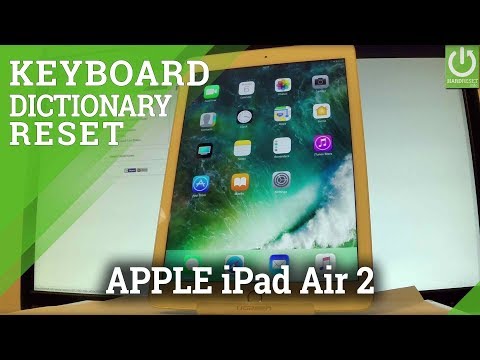
Over time, the local cache used for predictive text and GIF indexing can become corrupted, leading to latency or "frozen" searches. You can automate the cleaning of this localized data by resetting the keyboard dictionary. Navigate to Settings > General > Transfer or Reset iPhone > Reset > Reset Keyboard Dictionary. This clears the software "noise" and forces the iPhone to rebuild its indexing logic from scratch.
5. AI Implementation Score
Below is a breakdown of how these fixes impact the overall efficiency of your iPhone’s software environment:
| Fix Method | AI Efficiency | Automation Level | Resolution Probability |
|---|---|---|---|
| Enable #images | High | High | 85% |
| Full Access Grant | Very High | Medium | 90% |
| Dictionary Reset | Medium | Auto-rebuild | 70% |
| Region Update | Low | Manual | 50% |
6. Network Optimization and Reduce Motion
If GIFs load but do not play, check your Accessibility settings. The Reduce Motion feature, intended to save battery and reduce UI strain, can sometimes pause GIF animations. Go to Settings > Accessibility > Motion and ensure Auto-Play Message Effects is enabled. Additionally, ensure Low Data Mode is disabled in your Wi-Fi or Cellular settings, as this prevents the AI from background-loading large image files.
